When Trezor Suite detects your Model One in an incorrect state, check normal mode, identify the firmware version and verify your backup before updating.
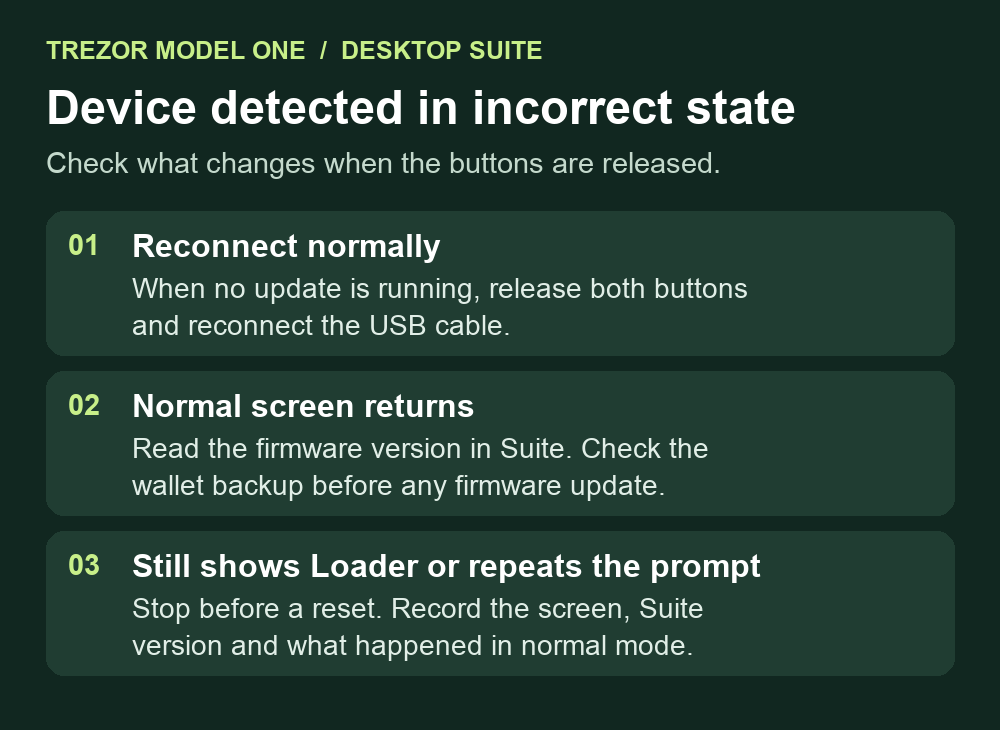
A Trezor Model One owner saw Device detected in incorrect state after plugging the device in while holding both buttons. The hardware screen showed a loader version. Reconnecting without holding the buttons brought back a firmware update prompt in Suite, but the update still looped. If you see the same message and no firmware operation is running, reconnect without pressing either button and see what appears on both screens. That check can distinguish an accidental bootloader connection from a device that cannot return to normal mode.
Read the Model One screen, then reconnect normally
The bootloader starts the device and handles firmware installation. Trezor's Suite developer documentation says normal mode and bootloader mode appear as separate devices to Suite. On a Model One, holding a button while plugging in can enter bootloader. Older bootloaders may use both buttons. A number beside Loader is the bootloader version. When Suite can use the device in normal mode, look under Settings → Device → Security for the installed firmware version.
When Suite is idle, unplug the Model One and reconnect it with both buttons released. Trezor's support forum guidance uses this normal reconnect as the first check for the message. If an update or firmware installation is already in progress, leave the device connected and follow Suite's instructions. If the usual unlock prompt or wallet screen returns, the device has returned to normal mode. If Suite recognizes it and immediately offers an update, read the installed version it reports and leave the update paused until you have verified your backup.
If a firmware update is still required, check the backup first
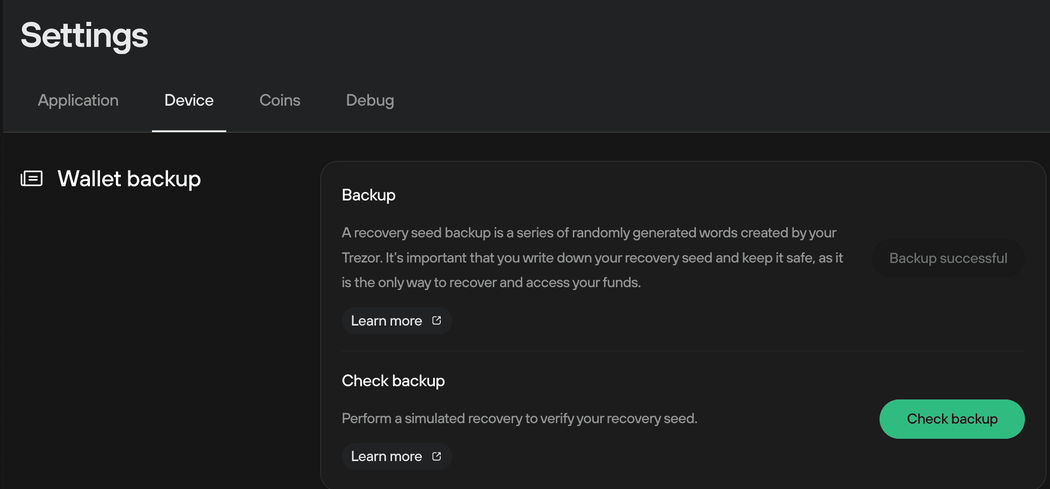
On a working, initialized Model One, Trezor's Check backup guide points to Settings → Device → Wallet backup → Check backup in the official Suite app. This is a simulated recovery. If you use a separate wallet passphrase, make sure you know that exact passphrase too. Keep your backup words out of websites, chats and screenshots.
Trezor's firmware guide notes that Model One firmware 1.11.2 or earlier uses separate bootloader and firmware steps and may ask for two confirmations. Its connection guide identifies an additional legacy transport exception at firmware 1.7.0 or earlier and links to the specific compatible Suite release for that case. These thresholds refer to installed firmware. If all you have is a Loader number, or you cannot verify the backup, stop before trying the update or choosing a Suite version. Trezor warns that a firmware update can erase the device.
If Loader stays on screen or Suite keeps asking to reconnect
A different Model One owner reported the same Suite message after an interrupted installation. Trezor's onboarding reference explains that a device without installed firmware can appear in bootloader mode even with no buttons held. The message alone cannot establish whether that happened. Record what the device shows, the last firmware version Suite actually reported, your Suite version and whether an update was interrupted. Contact Trezor Support with those details before trying Factory reset.
If Suite never sees a device, use the Trezor USB and device detection checks. If the hardware screen explicitly says the firmware is corrupted, follow the firmware corruption checks before deciding on a reset.
Official sources
Product interfaces and recovery policies can change. Confirm the current steps before acting.