If Trezor Suite keeps searching while the device lights up, separate a charge-only cable, unsupported web browser, old Model One firmware, and computer issues.
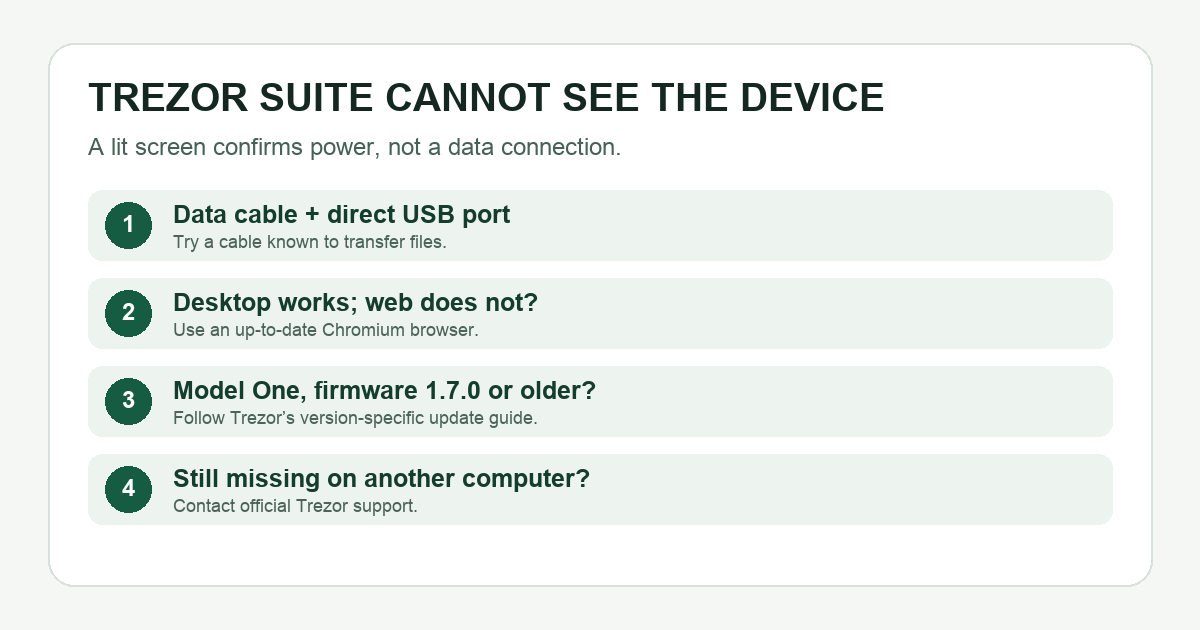
A Trezor Model One owner reported that the screen reached its PIN prompt while Suite kept searching. They had already changed cables and tried other computers, so their cause was not established. The symptom still shows why the first clue matters: a lit screen proves power, not a working USB data connection. If Trezor Suite does not detect your device, test the connection in layers before considering a reset or firmware change.
Screen on, Suite still searching: can the cable carry data?
Use the original Trezor cable or another cable you know transfers files, plug it directly into a computer USB port, and try another port. A charging-only cable can light the device without letting Suite communicate with it; Trezor lists this as its first connection check. If a known data cable makes Suite detect the device, you have isolated the connection path. If you have already tested several data cables and computers, do not keep cycling through the same check; move to the next branch. Do not wipe the device to test a cable.
Does desktop Suite work while the web app fails?
That split points toward the browser. Trezor's current OS and browser requirements support up-to-date Chromium browsers for the web app and recommend Chrome; Firefox and Safari lack the needed WebUSB support. Try the official Trezor Suite web app in a supported browser. If desktop and web both fail on the same computer, a browser-only explanation is weak. Also check that your operating system meets Trezor's current requirements.
Is it a Model One on firmware 1.7.0 or older?
This is a specific legacy exception, not a general update fix. Trezor says current Suite no longer supports the older connection method used by Model One firmware 1.7.0 or below. Its connection guide links to Suite 25.1.2 for the firmware update, then instructs users to update Suite. Check the model and firmware before following that route, obtain the older release only from Trezor's linked page, and confirm you have your wallet backup before changing firmware. Never type backup words into a website or support chat. If you cannot establish the firmware version, ask official support rather than guessing.
Still undetected after another computer?
Trezor recommends testing a different supported computer. If it works there, investigate the original computer's USB setup, operating system, drivers, or security software. Trezor's page includes a Windows-specific driver procedure; do not apply it to macOS or Linux. If multiple known data cables and supported computers still fail, those public checks cannot prove a device or firmware fault. Contact Trezor support with the model, Suite version, operating system, and checks already tried. Keep the backup and PIN private.
The map above orders the clues: data cable and port → desktop versus web → old Model One firmware → another computer → support. Each branch can narrow the cause; none requires moving funds or giving anyone your recovery words.
Official sources
Product interfaces and recovery policies can change. Confirm the current steps before acting.