Separate a Nano S USB connection failure from a Ledger Wallet app issue using the device screen, data cable and My Ledger detection.
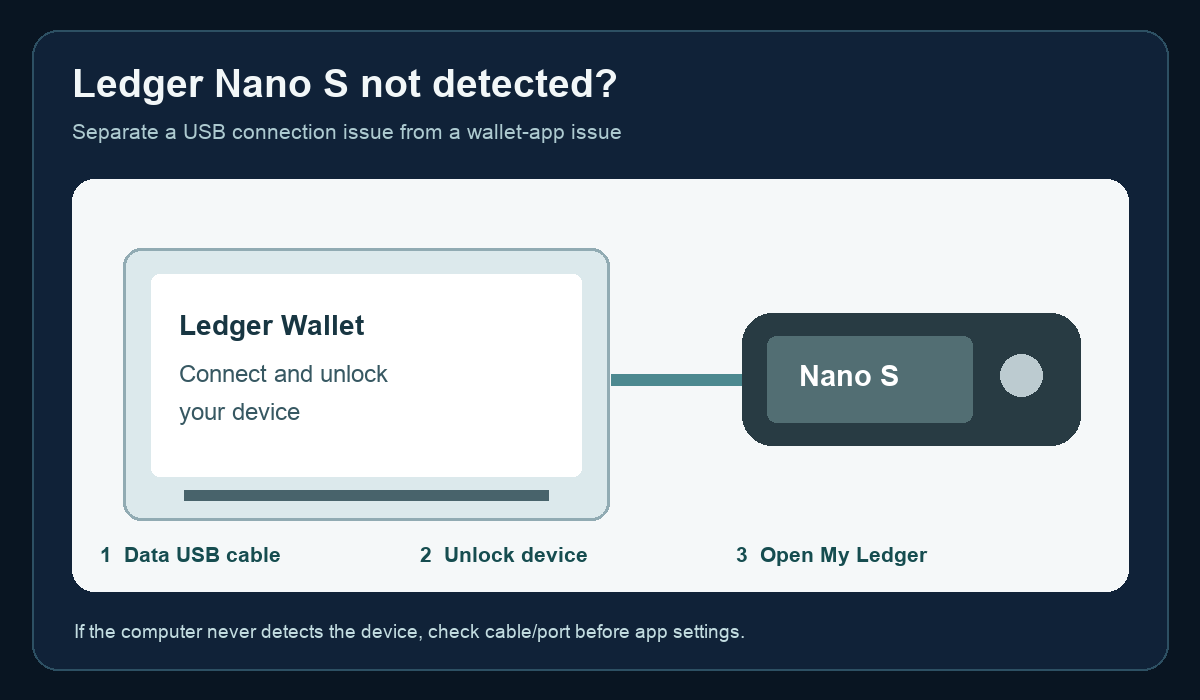
If Ledger Wallet does not detect your Nano S, first determine whether the computer detects the device at all. Connect it with a USB data cable, unlock it with its PIN, and open My Ledger in the official desktop app. This is a connection check; do not reset the device or enter your Secret Recovery Phrase into a browser to make it appear. Ledger maintains a USB troubleshooting guide for this situation.
Does the Nano S screen turn on and unlock?
If the screen stays off, test a known data-capable cable and a different USB port, ideally directly on the computer rather than through a hub. A charging-only cable can power a device without carrying the data needed for detection. Ledger's connection tutorial separates the hardware and cable check from software interference. If a second cable and computer cannot detect the device, stop software troubleshooting and contact Ledger Support from its official site.
Does the computer see it, but My Ledger does not?
With the Nano S unlocked, close other wallet apps or browser tabs that may be using the device, reopen Ledger Wallet, and retry My Ledger. Use the current app from Ledger's official site. Ledger's USB troubleshooting guide provides operating-system-specific steps; use the section for your actual computer rather than applying Windows driver instructions on a Mac. The illustration above maps the connection checks; it is not a screenshot or a device diagnostic.
What if detection works but a transaction still fails?
A device that appears in My Ledger has passed this basic USB check. A failure only when opening a coin app or signing is a different branch: note the exact message, device model, desktop OS and whether another wallet works, then check the relevant coin-app instructions. Do not assume a missing balance means the device lost its keys. Ledger's device-failure guidance recommends cable and software checks before considering recovery options.
Never disclose the recovery phrase to someone offering to “synchronize” or “repair” the Nano S. This page cannot diagnose physical hardware remotely; if the cable and computer checks fail, use official support rather than repeated resets.
Official sources
Product interfaces and recovery policies can change. Confirm the current steps before acting.