Compare the dApp’s supported chains with the selected Safe network when WalletConnect will not approve a connection.
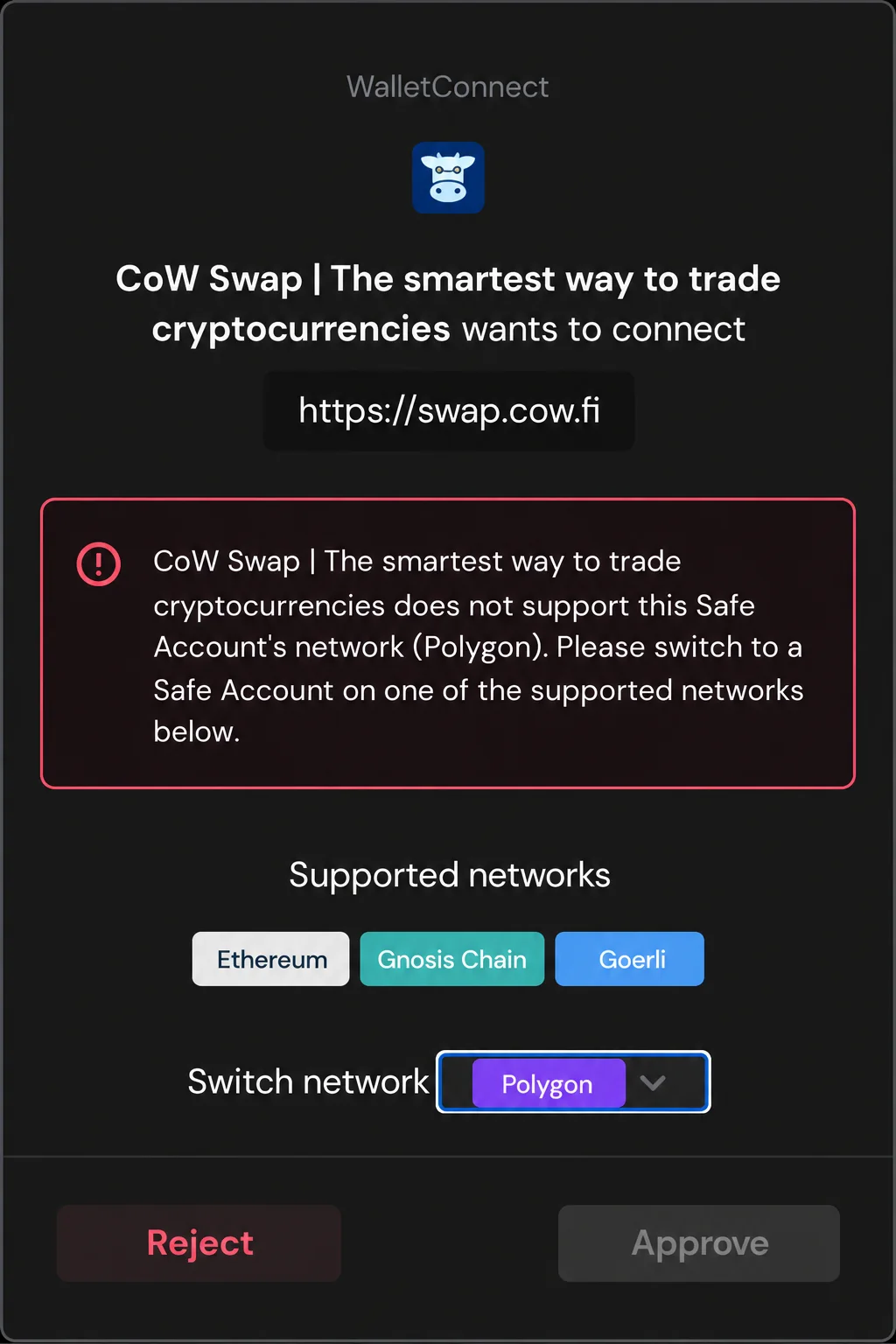
If the WalletConnect Approve button is disabled while connecting a Safe to a dApp, first compare the Safe's selected network with the chains supported by that dApp. Safe's WalletConnect guide says its confirmation prompt shows compatible networks and disables approval when the dApp does not support the current one.
How to identify the network mismatch
In the official Safe app, confirm which network is selected for this account. In the dApp, check the chain it offers for the intended action. When Safe's prompt lists compatible chains, switch to one on which your Safe is actually deployed and configured, then review the dApp's identity and connection request again. Switching the interface alone does not deploy a Safe or move its funds.
Why the connection may remain blocked
Safe also documents a separate restriction for certain bridge connections where the destination-chain address can differ from the source-chain address. In that case, the frontend may block the connection to reduce fund-loss risk. Do not try to bypass that protection by pasting an alternative pairing code or sending assets directly. Check the bridge's official supported route and Safe's current guidance.
Before you approve any dApp
Verify the dApp's full domain independently, the Safe address and network, and the requested permissions. Safe notes that an unverified dApp may have no badge; absence of a warning is not an endorsement. If the Safe cannot be added on the needed chain, use the same-address network compatibility guide before attempting a transfer. A WalletConnect session does not grant a dApp owner keys, but the transactions you later sign can still move assets or approve spending.
Official sources
Product interfaces and recovery policies can change. Confirm the current steps before acting.