Ledger Wallet downloads an update but Relaunch leaves the old desktop version. Check About, then verify and run Ledger’s official installer.
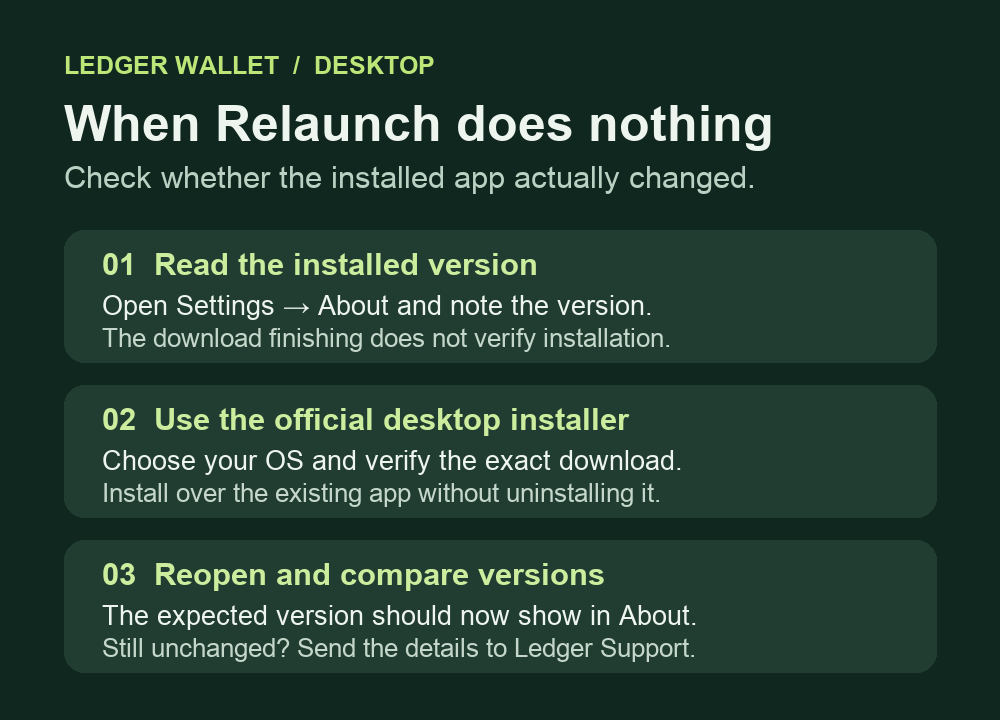
A Ledger Wallet desktop user on 4.0.0 watched an update download, clicked Relaunch, and still had the old version after reopening the app. If that is what you see, check the installed version, then use Ledger’s official desktop installer over the existing app if the version stayed the same. Ledger’s desktop release help lists the official download as an alternative to the notification banner. Ledger customer success recommended an in-place install in the public thread. Ledger also documented a macOS auto-update issue affecting some 4.0.0 and 4.2.0 users in May 2026. Ledger marked that incident resolved. The October report does not identify the operating system or confirm the same cause.
Check what version is running
Open Ledger Wallet and look for the app version under Settings → About, where Ledger’s developer reference locates it. Just read the version. Compare it with the number you saw before clicking Relaunch or the version the update offered. If the expected version is already installed, the update worked even if you did not see a restart. If the old version is still there, the download alone did not finish the update.
Install the official package over the existing desktop app
Quit Ledger Wallet, then open Ledger’s own download page directly and choose the installer for your operating system. Ledger publishes download signatures and checksums for its desktop packages. Follow Ledger’s authenticity checks for your operating system, using the entry for the exact package. A checksum is a file fingerprint. If you cannot verify the installer or the values differ, stop before running it.
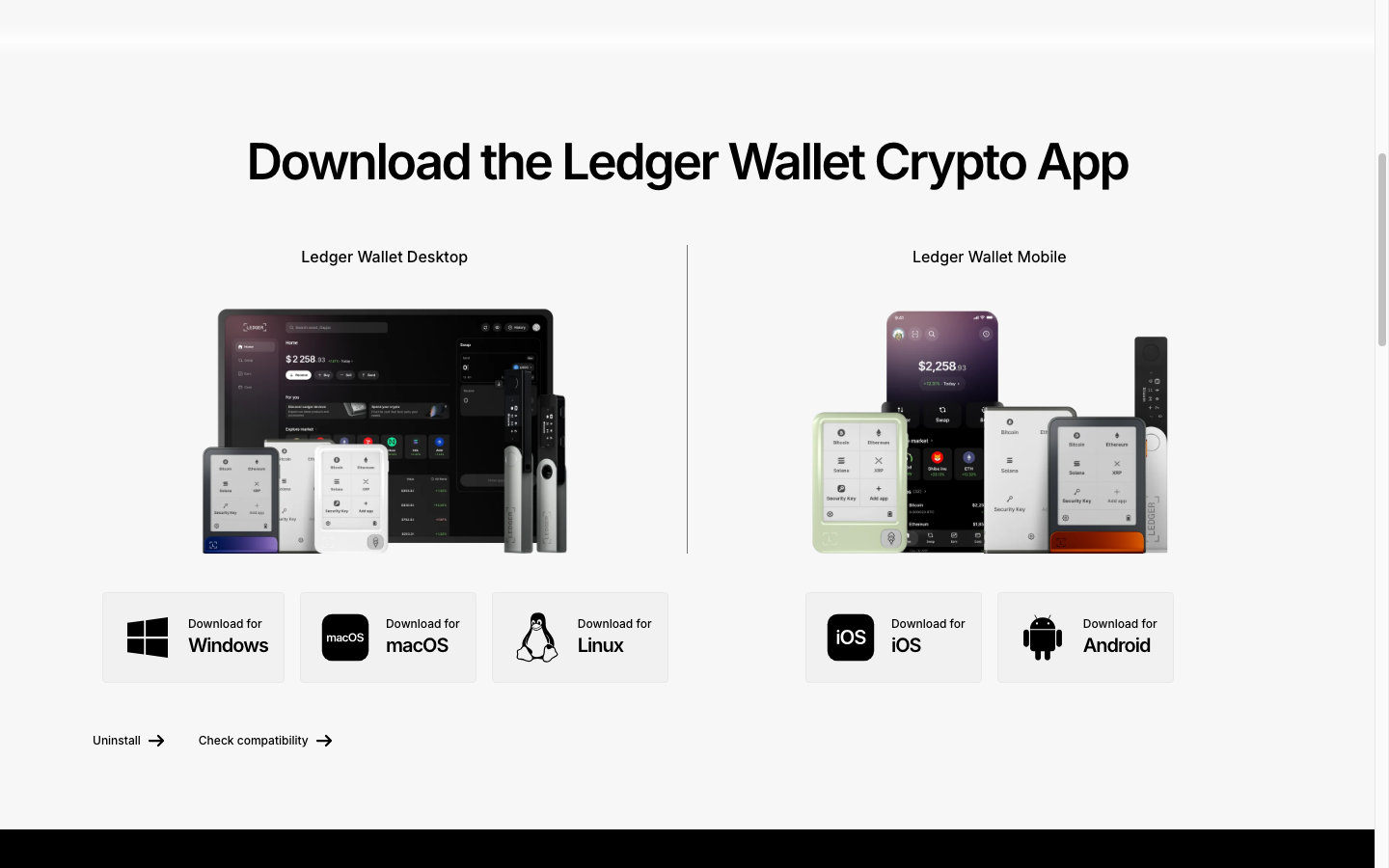
Run the verified installer over your existing installation. There is no need to uninstall it first for this route. This step updates the application on your computer. A signer firmware update in My Ledger is a separate operation. Keep your recovery words offline and stop if any installer or site asks you to type them.
Reopen Ledger Wallet and read About again. If the expected version still does not show, tell Ledger Support your operating system, the version that remains installed, and any installer message. If the only discrepancy is that your app already offers a newer version than the help page lists, see how to check a Ledger update that is ahead of the website.
Official sources
Product interfaces and recovery policies can change. Confirm the current steps before acting.
- Ledger: Desktop update and release guidance
- Ledger Status: Resolved macOS desktop auto-update incident
- Ledger: Official desktop download
- Ledger: Download signatures and checksums
- Ledger: Verify an installer before running it
- Ledger developer reference: Location of app version
- Ledger: Contact official support