Trezor update stopped and Suite asks for a reset? Match the error and confirm your wallet backup before following the official model-specific route.
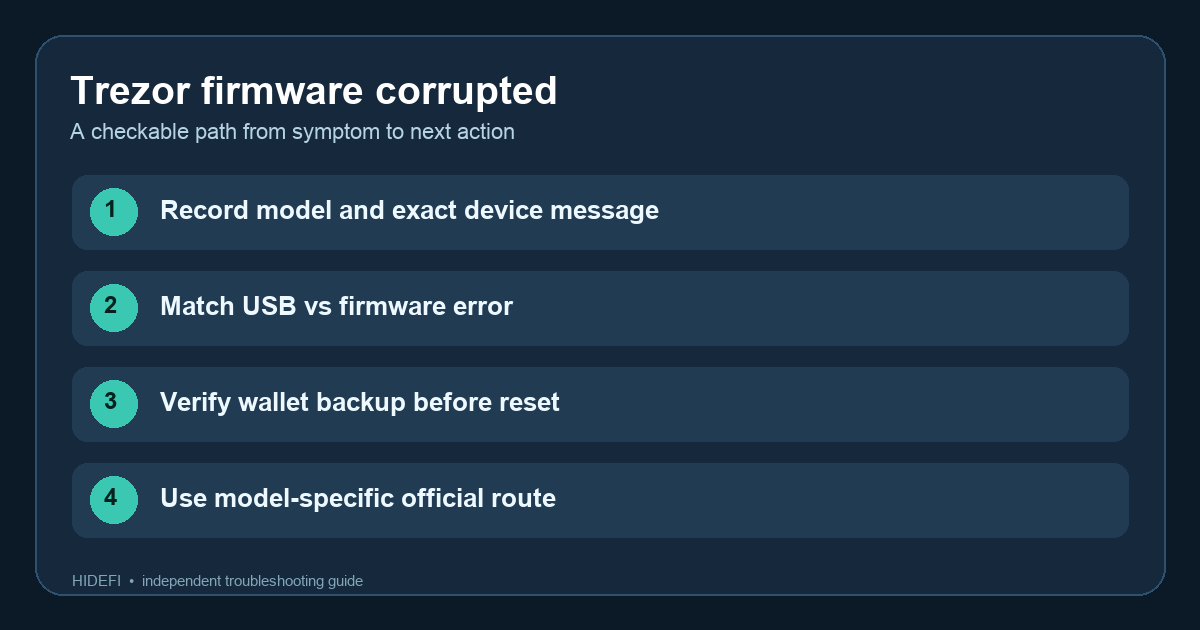
A Trezor owner reported that a firmware update stopped after a cable warning. The device then showed a corrupted-firmware screen, and another update attempt led to a Factory reset prompt. Their real question was whether pressing reset would cost them access to their coins. Do not use Factory reset as a blind first click. Identify the exact error and confirm the wallet backup first.
Here is an illustrative way to separate the two decisions; HideFi did not handle this device. The original flow above is a reminder to read the screen, check the backup, and then follow the route for that model.
Does the screen say “Firmware is corrupted” or show a different error?
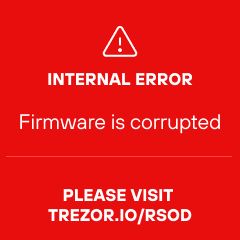
Write down the Trezor model and the exact message on the device. Trezor’s hardware guide lists different red-screen causes. A USB read error first calls for trying another cable or computer; a Firmware is corrupted message points to bootloader mode and another firmware update attempt. A touch-screen error is a different branch. The screenshot below is Trezor’s own example of the firmware-corruption message. Match the words rather than assuming every red screen means the same thing.
If you use the official bootloader route, follow the instructions for your model on that same Trezor page. A device that is not recognized, displays a different error, or keeps failing after the official attempt needs model-specific support. Do not use a third-party firmware “repair” file.
What must I check before accepting Factory reset?
Trezor says a factory reset erases the device’s firmware and private keys. Its firmware-update page says an interrupted update may already have wiped the device and points to recovery with the existing wallet backup. The coins are not stored inside the device, but access to the same wallet depends on the correct backup and, if you used one, the same passphrase. A reset is not a substitute for either.
Before pressing reset, make sure you have the backup you created for this wallet, stored privately, and know which model you are recovering. If you cannot confirm it, stop. A support chat can help identify the hardware error, but no legitimate helper needs your backup words or passphrase. Enter recovery words only through the official on-device or model-specific Trezor recovery flow, never into a website or message.
After a successful official update or recovery, check whether the expected wallet appears. If the device works but the wallet is empty, a different passphrase can create a different view; use the Trezor passphrase-wallet checks before assuming the assets moved.
When should I ask Trezor support to identify the next step?
If the error wording is unclear, the device will not enter the official bootloader flow, or you lack a verified backup, stop before any destructive action. Contact Trezor support through its official page with the model, exact error text, Suite version, and what happened during the update. Do not include the backup or passphrase. The checkable outcome is either a completed official update opening the expected wallet, or a clear recovery prerequisite to resolve first. The prompt itself does not prove that funds were transferred.
Official sources
Product interfaces and recovery policies can change. Confirm the current steps before acting.