If a Trezor Suite update leaves a dead shortcut, check whether the app opens and inspect free drive space before retrying the official installer.
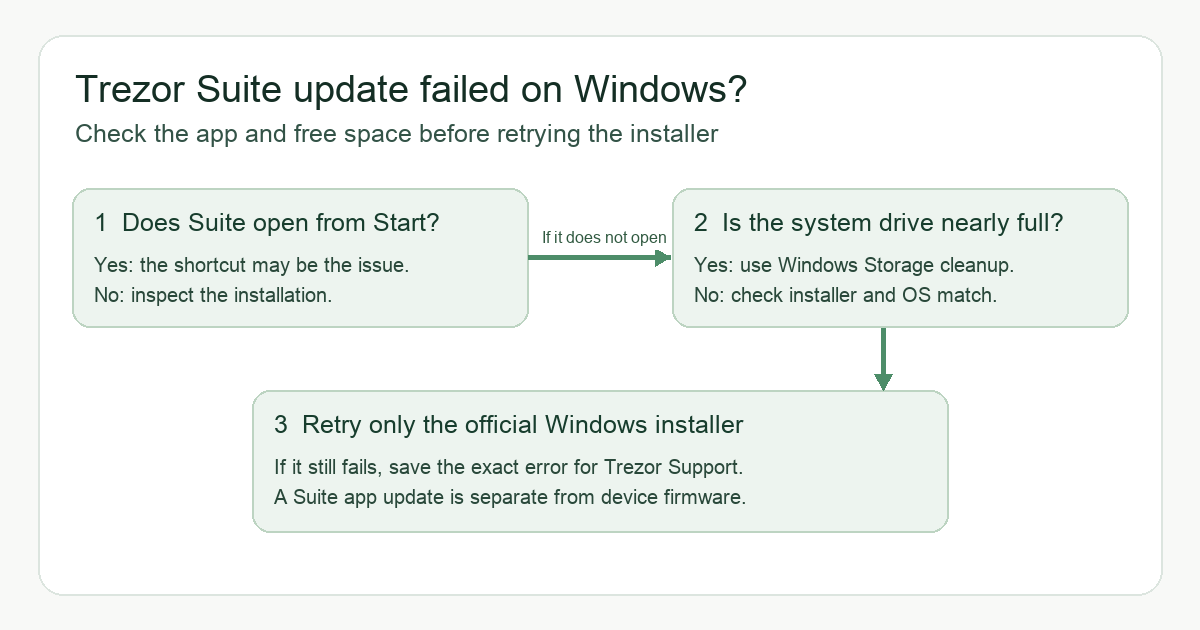
A Trezor Suite user on a PC described an update that failed to install and left the Suite shortcut unusable. They later found their drive was short on free space and reported the issue resolved after addressing that. Check whether the app itself still opens, then check free space on the Windows system drive before retrying a trusted installer. Low space explained this one report; it is not a diagnosis for every broken shortcut.
Is the shortcut broken, or is Suite missing?
On Windows, search for Trezor Suite from the Start menu. The original post did not confirm the operating system, so the Windows checks below apply only if this is your platform. If the app opens, the desktop shortcut may be the only broken part; you do not need to assume the wallet or device has changed. If the app does not open, note the exact Windows error rather than repeatedly clicking the old shortcut. This first check keeps a bad shortcut separate from an interrupted installation.
This is a Trezor Suite desktop app update, not a Trezor device firmware update. If your problem instead began while updating the device itself, follow the separate firmware update troubleshooting guide. Do not reset the device or type its wallet backup into a computer to fix a desktop shortcut.
Check free space before reinstalling
On Windows, open File Explorer → This PC and look at the free space shown for the drive where Windows and Suite are installed. Microsoft also documents Settings → System → Storage for a more detailed breakdown. The screenshot below is a cropped Microsoft example of the free-space display, not a measurement of your computer.
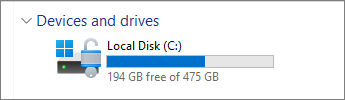
Screenshot excerpt from Microsoft Support. It shows where to read available space; the numbers are only an example.
If the drive is nearly full, use Windows Storage and its cleanup recommendations to free space you recognize as safe to remove. Microsoft's storage guidance explains those controls. Check the free-space figure again afterward. Trezor does not publish a minimum free-space figure for this particular failure, so do not treat any fixed number as a proven threshold. If space was already ample, look for another installation cause.
Retry the official Windows installer, then verify the result
Download Suite only through Trezor's official download page or verified GitHub release path. The current Windows installation guide covers the installer and says Windows 10 64-bit or newer is required. If the default download does not work for your computer, Trezor's OS guide explains how to choose the compatible build. Run the downloaded installer and then open Suite from Start, instead of trusting the old desktop shortcut as the only test.
If Suite launches and shows the expected device/account view, the app installation is working; you can deal with a stale shortcut separately. If installation still fails, keep the exact error, Windows version, available space and installer source and contact Trezor Support. An error about Windows Defender, an incompatible installer, or a device connection is a different branch and should not be blamed on storage without evidence. The original user's low-space finding is useful because it suggests a simple check before more invasive steps, not because it proves every failed update has the same cause.
Official sources
Product interfaces and recovery policies can change. Confirm the current steps before acting.