If your Safe 7 shows a red HF error when you start Bluetooth pairing after a rename, check the firmware fix over USB and know when to stop.
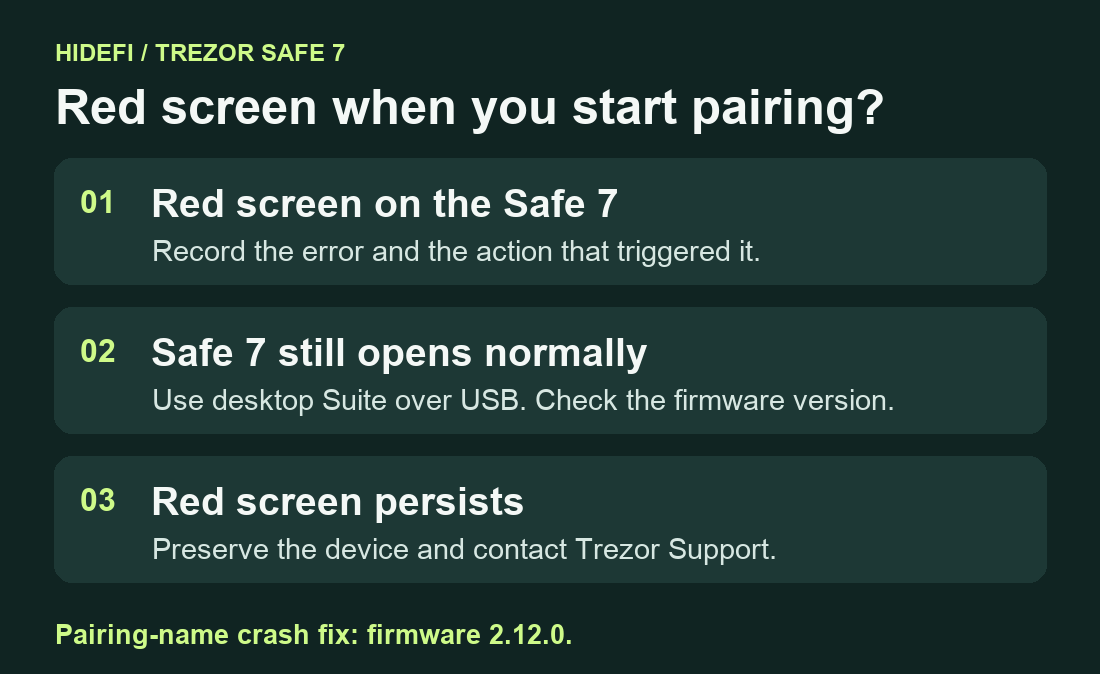
A Safe 7 owner got a red HF error after setting a long device name and selecting Pair & connect → Pair new device. Trezor reproduced that crash and fixed the pairing path in firmware 2.12.0. If your device still unlocks, check its firmware over USB before trying Bluetooth again. If it stays on the red screen, record the error and contact Trezor Support. Original report and reproduction.
Match the error to what you were doing
The report used Safe 7 firmware 2.11.0. Trezor reproduced the crash on 2.10.0 with a 21-character test name. The fix shortens the Bluetooth advertisement name before pairing starts. The patched code is present in 2.12.0 and 2.13.0. Use the action that triggered the screen and the installed version together when checking for this issue. Trezor’s patch, Safe 7 release notes.
If the phone shows Failure_Busy and the hardware screen still works, follow the Safe 7 Bluetooth busy checks. If the red screen says firmware was corrupted during an update, use the firmware update error guide. Trezor documents several red-screen causes. Trezor’s hardware troubleshooting.
Check the installed firmware over USB
If the Safe 7 reaches its usual PIN screen and unlocks, connect it to desktop Trezor Suite with a data-capable USB cable. Go to Settings → Device and read the firmware version in Security. Trezor listed 2.13.0 as the latest Safe 7 release on November 11, 2026. Trezor’s firmware update guide, Safe 7 release list.

If you are below 2.12.0 and the pairing trigger matches, verify the wallet backup on the Safe 7 before accepting the current official update offered in Suite. A failed update can erase the device. Stop before updating if you cannot verify the backup. After updating, confirm the installed version in Suite and retry pairing once. If the device reaches the pairing-code screen, compare the codes on the hardware and the computer or phone. Safe 7 on-device backup check, Trezor Bluetooth pairing guide.
Keep the device intact if the screen returns
Contact Trezor Support if the crash returns on current firmware, the device cannot reach its normal PIN screen, or desktop Suite cannot connect. Give support the exact error, the firmware version if known, and whether the screen appeared during Pair new device or at startup. Keep the device, backup words and passphrases private and intact while support checks the cause. Trezor Support.
Official sources
Product interfaces and recovery policies can change. Confirm the current steps before acting.
- Trezor issue #6710 — Pairing crash report and reproduction
- Trezor firmware — Pairing-name crash fix #6724
- Trezor Safe 7 — Version 2.12.0 changelog
- Trezor — Current Safe 7 firmware releases
- Trezor — Red-screen troubleshooting
- Trezor — Safe 7 Bluetooth connections
- Trezor — Update firmware safely
- Trezor — Check the backup on a Safe 7