See a Bitcoin balance but Ledger rejects the connected device? Check the original Ledger and profile by verifying a receive address without sending BTC.
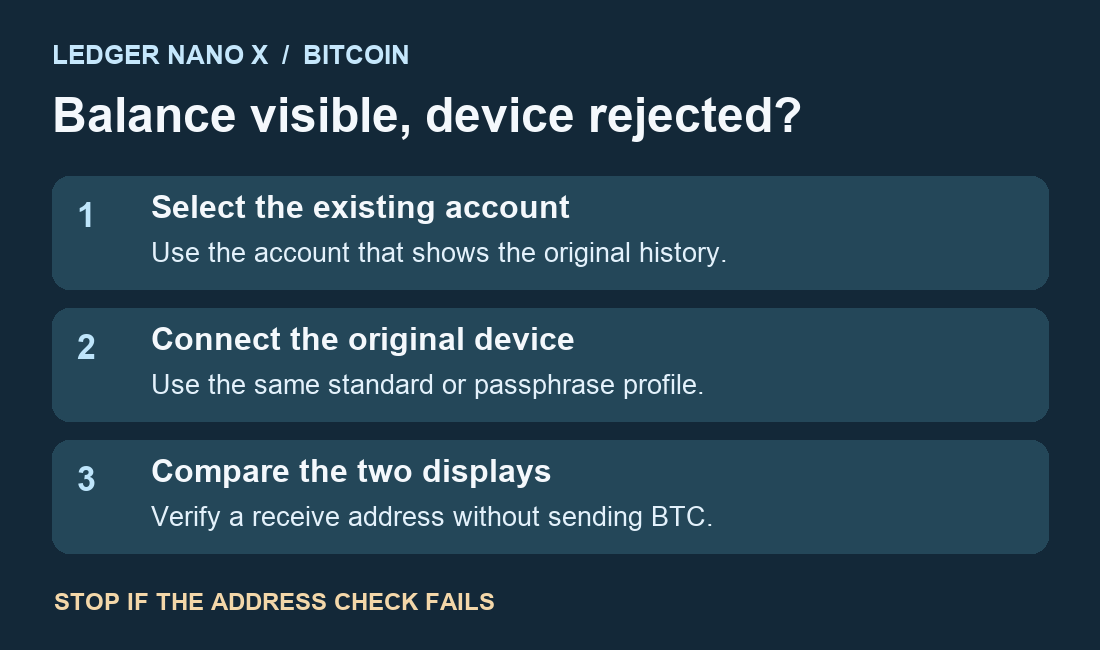
A Ledger Nano X owner could still see an existing Bitcoin account and its history in Ledger Wallet. The app refused to sign and also rejected receive-address verification with the device they connected. If Ledger Wallet says the Bitcoin account does not belong to the connected device, start with the device and profile that originally created the account. Check them through Receive without sending any Bitcoin.
Why the app can show Bitcoin the device cannot sign for
When you add an account, Ledger Wallet reads a public account key from the device. The app can use that information to show the account’s history even when the device is disconnected. To verify the address or approve a send, the connected device needs the corresponding keys. Ledger’s error guide explains that the selected account and the keys currently loaded on the device can differ after a reset, with a different device, or when an account uses a passphrase.
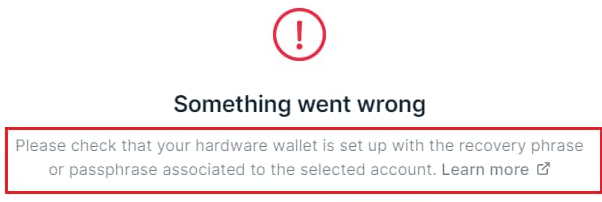
Verify the existing account with the original device
In desktop Ledger Wallet, open Home → Receive → Via Crypto address and choose the existing Bitcoin account that shows your history. Connect the device you originally used for that account and open its Bitcoin app when prompted. Select Verify and compare the address shown by the app and the Ledger screen in that same prompt. You can do this without broadcasting a transaction. If the device displays the same address, it can verify that account’s receiving address. If the warning returns or the addresses disagree, stop the receive check and do not fund the displayed address.
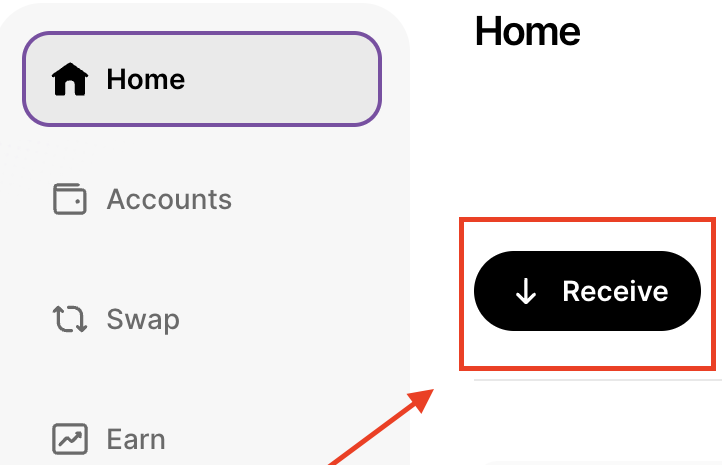
Compare the two current displays directly. Bitcoin receive addresses can rotate, so a difference from an old address in your records does not establish a mismatch.
Check which profile was used before touching a backup
If you already set up the original account with a passphrase attached to a secondary PIN, use that known PIN on the original Ledger and repeat the receive check. If you previously used a temporary passphrase, the old session ends on restart. Ledger’s passphrase guide explains both modes. A new or different passphrase opens a different set of accounts. For an account that is missing entirely from Ledger Wallet, follow the separate hidden-account discovery checks.
If the original device is gone or has already been reset, review your own records for the backup and any exact passphrase associated with the account. Preserve any working device. Ledger’s reset guide explains that reset removes the keys currently on the device and that repeated wrong PIN attempts can reset it too. If you cannot confirm the original backup, stop before resetting or guessing. Contact Ledger Support with the device model, Ledger Wallet version, and the error wording. Keep recovery words and passphrases offline. Never type the recovery words into desktop software to investigate this warning. The warning cannot tell you which backup you used or prove a transfer took place.
Official sources
Product interfaces and recovery policies can change. Confirm the current steps before acting.