Seeing Failure_Busy over Bluetooth on iPhone? Retry with one app, check the Safe 7 firmware fix, then verify the address on the device.
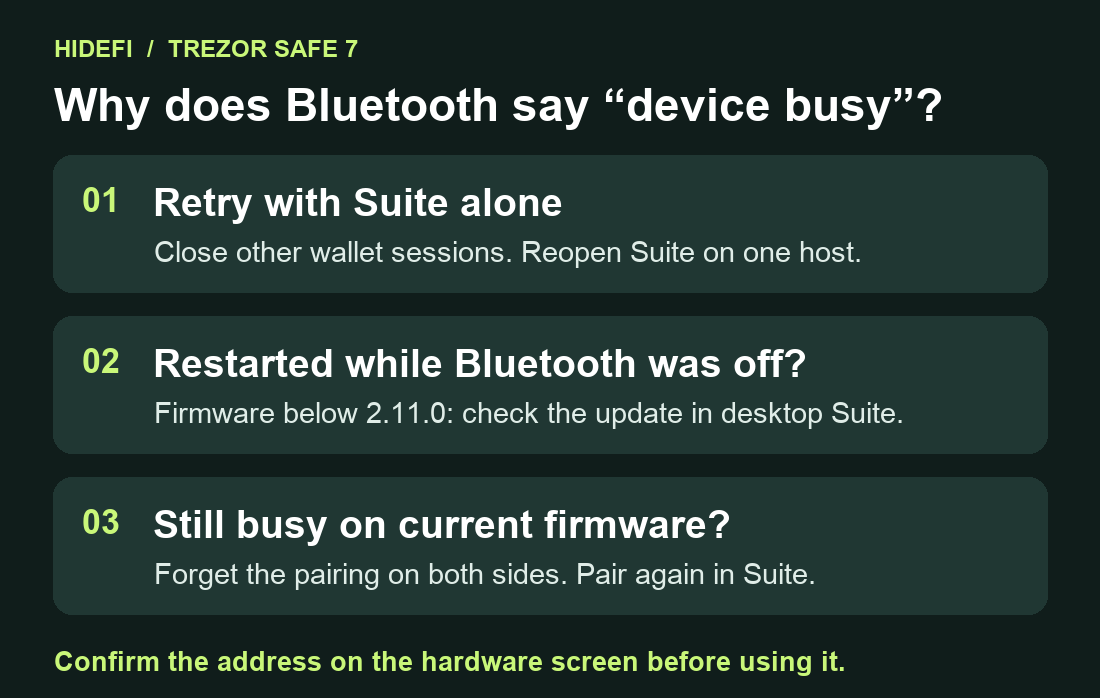
A Safe 7 owner saw “Connected TREZOR is being used by another application” and Failure_Busy on an iPhone just after confirming the Bluetooth pairing code. Start by closing other wallet sessions and reconnecting in Suite. If it started after you rebooted the Safe 7 with Bluetooth off and then enabled it again, check the firmware version. Trezor fixed that specific sequence in 2.11.0. iPhone pairing report.
See whether Suite can connect on its own
Close other wallet apps, browser tabs, and desktop Suite sessions that were using the Safe 7. Fully quit Suite on the iPhone, reopen it, and retry once. If it connects, keep only that Suite session open while you repeat the action that raised the warning. If Failure_Busy persists, check how the device started up. Trezor’s support response.
Check the firmware if Bluetooth was off at restart
Trezor traced one cause to the Safe 7 starting with Bluetooth disabled. Enabling Bluetooth afterward could leave the connection unusable. Firmware below 2.11.0 plus that startup sequence matches the conditions for this bug. Safe 7 release notes, firmware fix #6448.
Connect the Safe 7 to a computer with a data-capable USB cable. In desktop Suite, open Settings → Device and find the installed firmware version in the Security section. Trezor listed 2.13.0 as the latest Safe 7 version on November 11, 2026. If your version is below 2.11.0 and the sequence fits, install the current version offered by official Suite from the computer. Stop before updating if you cannot locate the wallet backup. A failed update can erase the device. The Safe 7 can check its backup directly on the hardware screen. Trezor firmware update guide, release list, Safe 7 backup check.

If Suite on the computer cannot see the device, check the USB connection before attempting an update. Trezor USB detection checks.
Clear the old pairing and verify the connection
If your firmware already includes the fix or the startup sequence differs, clear the saved pairing. In iPhone Bluetooth settings, forget the Safe 7. On the Safe 7, use Pair & connect → Forget all to clear its saved Bluetooth pairings. Other paired hosts will need to pair again. Restart both devices. If the old device is still available in Suite’s wallet menu, Device settings also has a Bluetooth unpair control. Keep the wallet itself intact. Trezor Bluetooth troubleshooting, Safe 7 Bluetooth menu.

Open Connect in Suite on the iPhone. On the Safe 7, choose Pair & connect → Pair new device, then select your device in Suite. Compare the Bluetooth pairing codes and tap Pair if they agree. Press Confirm on the Safe 7 and enter the separate one-time code shown on the device into Suite. Trezor’s iPhone pairing guide.
After reconnecting, open Receive, select the intended account, and tap Verify. Compare the full address shown on the Safe 7 before using it. You can do this check without making a transfer. If Failure_Busy persists, give Trezor Support your Suite, iOS and firmware versions, the warning, and whether desktop USB works. Keep your backup words private. Trezor receive-address verification, Trezor Support.
Official sources
Product interfaces and recovery policies can change. Confirm the current steps before acting.
- Trezor — Support response on the busy warning
- Trezor Safe 7 — Firmware changelog
- Trezor firmware — Bluetooth restart fix #6448
- Trezor — Current Safe 7 firmware releases
- Trezor — Update firmware safely
- Trezor — Safe 7 desktop and phone connection support
- Trezor — Bluetooth troubleshooting
- Trezor — Suite Mobile device settings
- Trezor firmware — Safe 7 Bluetooth menu
- Trezor — Pair a Safe 7 with iPhone
- Trezor — Verify a receive address in Suite
- Trezor Safe 7 on-device backup check