If Sparrow’s Scan QR preview is black on Linux, check the camera, the repeated decoder error and the fix shipped in Sparrow 2.5.6.
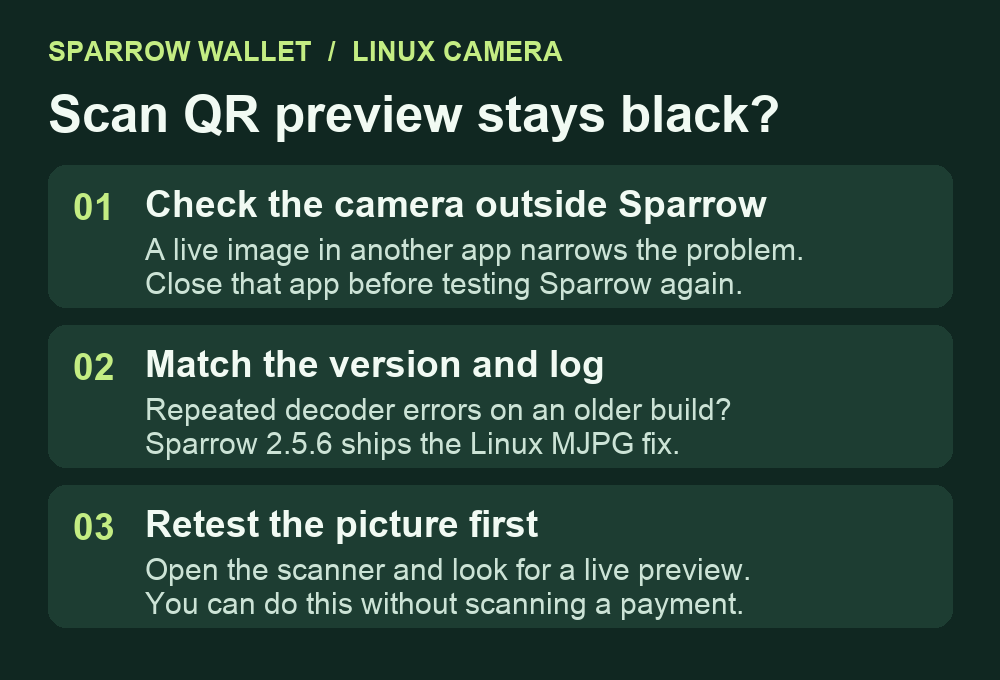
A Sparrow user on Linux Mint opened Scan QR to read a signed transaction from a hardware wallet. The preview was black even though the laptop camera worked in another app. If that matches your setup and Sparrow logs repeated tjDecompressHeader2 errors, check whether you are running 2.5.5 or older. Sparrow 2.5.6 includes the camera decoder fix for the reported Linux issue.
Check whether the scanner receives camera frames
Try the camera in a trusted local camera app, then close that app before opening Sparrow’s scanner again. If both apps show black, check whether the camera is covered or disabled. The reported decoder issue involved a working camera that gave Sparrow a stream of MJPG frames, a format made up of compressed JPEG images.
In Sparrow, use Help → Show Log File and look near the time you opened the scanner. The useful clue is the same decode error repeating as frames come in. The report reproduced it on 2.3.1 and 2.5.5. A black preview alone can have other causes, including a camera that Sparrow cannot open at all.

Update through Sparrow's official release
The maintainer updated the bundled capture library to fix MJPG decoding on Linux. The 2.5.6 release lists the dependency update. Use Sparrow’s official download and signature verification instructions for the appropriate Linux package. Version 2.5.6 was current when this guide was reviewed.
The change is in the camera code. Keep your existing wallet files and hardware wallet setup intact. The reporter also reproduced the black preview with an empty Sparrow profile, which is a reason to check the installed build before touching your wallet configuration.
Check the picture before scanning the transaction
In 2.5.6, File → Open Transaction → From QR... opens the scanner. Look for a live picture and close the dialog. This check needs no transaction QR. If the picture works but your QR still fails to scan, use the official QR workflow for your signer and confirm you are presenting the code for the step Sparrow expects.
If the current version still gives a black picture, compare the new log with the original error. Share your Sparrow version, Linux distribution and the relevant error line through Sparrow's issue tracker after removing private details from the log. For a Sparrow window that renders normally but has a connection issue with a USB signer, see what Sparrow can show without the device.
Official sources
Product interfaces and recovery policies can change. Confirm the current steps before acting.