If Display Address is missing after a multisig descriptor import, check the Sparrow version and find the matching USB signer before verifying the address.
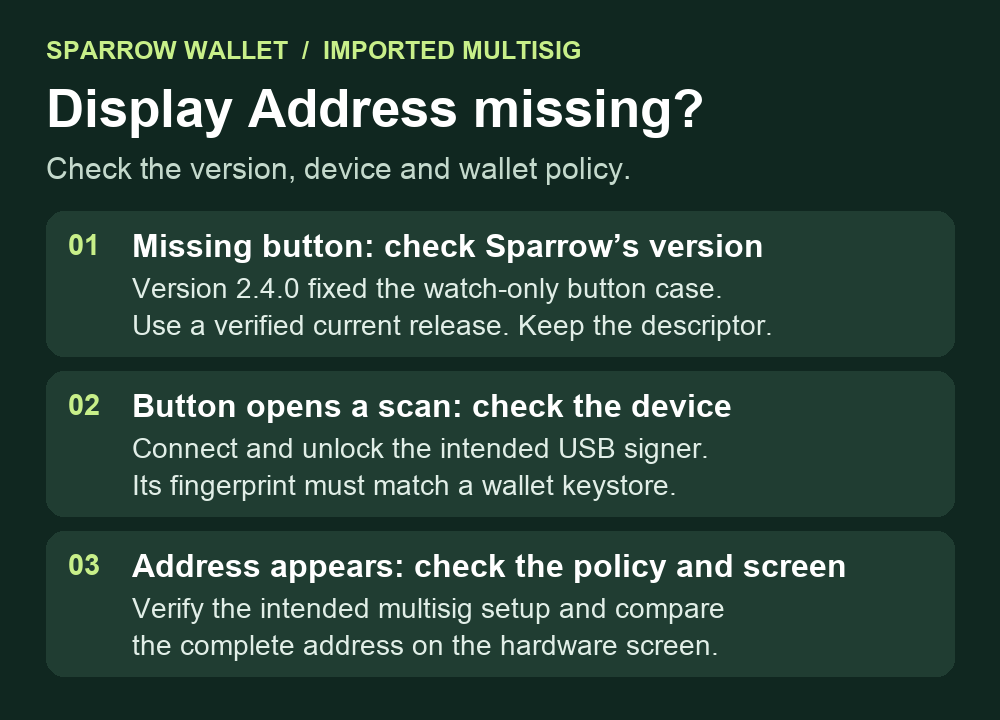
A Sparrow user imported a multisig wallet from its output descriptor. The Receive page showed an address, but Display Address was missing even when the user connected a hardware wallet. Check the Sparrow version first. Version 2.4.0 fixed a case where a watch-only wallet could hide the button. On a current release, an address on screen and a successful check on the hardware device are still separate steps.
Check the version before changing a keystore
A multisig descriptor describes the cosigner public keys and the signing rule used to derive the wallet’s addresses. Sparrow can show those addresses when the imported keystores are marked Watch Only. In the reported case the maintainer found that Sparrow could skip scanning when only a watch-only wallet was open. The 2.4.0 release notes include the button change. If you are on an older build, use the official download and signature verification instructions for the current release. Sparrow 2.5.6 was current when this guide was reviewed.
This check is for a supported USB hardware wallet. Open the intended wallet and select Receive. The 2.5.6 Receive code can show the button for a selected receive address with a watch-only keystore even before a matching USB device is ready. That gives you a way to start device verification without replacing a keystore or editing the descriptor.

If Display Address opens a device scan
Connect and unlock the supported USB signer you expect to use for this wallet. Click Display Address. If Sparrow opens the device dialog, use Scan... to look for the signer and select Display Address for the matching device. Sparrow’s device dialog code filters devices using the fingerprints in the descriptor. A locked device may need to be unlocked before Sparrow can check its fingerprint. A fingerprint is a short identifier for a signing key. Some PIN-protected devices report it only after unlocking, as described in the 2.5.4 release notes. Use the normal unlock flow for your own device.
If Sparrow reports No matching devices found, confirm the device and, if you use one, the intended passphrase wallet. A mismatch is a reason to stop and check the saved wallet policy and vendor guidance. Sparrow can show wallet details without the device, so seeing the address in the app does not confirm that the signer was found.
Compare the hardware address and the intended wallet policy
Follow the hardware vendor’s instructions for an existing multisig setup. For example, BitBox’s Sparrow multisig guide describes checking the cosigner keys when registering the wallet and then comparing the full receive address on the device. Compare any registration prompt with the wallet policy you already trust. A matching fingerprint identifies a potential signer but cannot validate the entire multisig policy.
If the full address differs or the device cannot verify the intended policy, stop before sharing that address. Keep the descriptor and keystores intact. Displaying and comparing the address does not require partially signing a transaction or sending a test payment.
Official sources
Product interfaces and recovery policies can change. Confirm the current steps before acting.