If a confirmed Bitcoin deposit appears in Phantom Activity but the BTC balance stays unchanged, check the receiving output, account and address settings.
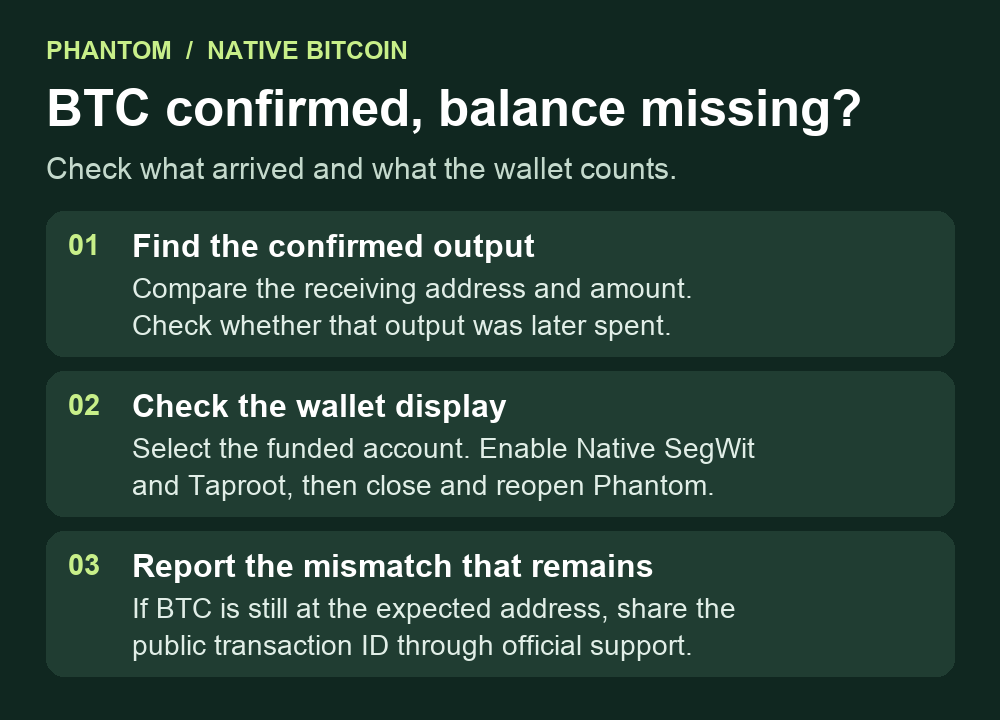
A Phantom user could open a confirmed Bitcoin withdrawal from Phantom’s Activity view, yet the deposit was missing from the BTC balance. Seeing the receipt and seeing the current balance answer two different questions. Check whether the confirmed payment went to the expected Bitcoin address and remains there. Then check which account and address types Phantom is counting. Phantom’s Bitcoin balance guidance covers both checks.
Follow the confirmed payment to its receiving address
Use the Bitcoin transaction ID from the sender’s withdrawal record or the explorer link in Phantom’s History. On a Bitcoin explorer such as mempool.space, check the confirmation and look for the output that paid your address. The transaction can have several outputs, so match the full receiving address and amount against your original withdrawal record. If the confirmed output went to a different address, ask the sender to check the withdrawal details before changing wallet settings. Phantom’s explorer guide explains how to find the public transaction ID.
A confirmed incoming payment shows what arrived at that address. Open the address page to see its current balance and any later spends. If the original output was spent, check that later transaction before expecting the original amount to remain at the receiving address. A spend can return change to another address in your wallet. If there is no confirmed Bitcoin transaction, use the Phantom pending Bitcoin guide.
Check which Bitcoin addresses Phantom is counting
Select the Phantom account you intended to fund and make sure you are viewing BTC on Bitcoin. In the browser extension, Receive on Home opens the address list. On mobile the corresponding path is Deposit > Receive Crypto. Phantom’s receiving guide explains that different Phantom accounts have different addresses, so compare the whole address where the wallet exposes it. A matching bc1q prefix alone is insufficient. If today’s Receive screen shows a different address, use the historical receiving address from the confirmed payment and your records before assuming that the account differs.
Phantom can count both Native SegWit (bc1q) and Taproot (bc1p) in one BTC balance. Its Bitcoin balance documentation explains that an address type excluded in the display settings can still hold BTC onchain. From the profile menu, open Settings > Preferences > Preferred Bitcoin Address and enable both types. Close and reopen Phantom, then check the BTC balance again. The settings change leaves the onchain payment where it was. If the funded account belongs to a Ledger device, use the Ledger account discovery checks first.
Report the result that still disagrees
If the BTC balance is correct and the transaction is missing from History, report a history display issue. If the explorer shows the funds at the expected receiving address and the BTC balance still disagrees after the account and address checks, open a Phantom Support case with the public transaction ID, address type, app version and what the two views show. Keep recovery phrases, private keys and PINs out of the report. The original poster did not confirm what caused the discrepancy or whether the display recovered.
Official sources
Product interfaces and recovery policies can change. Confirm the current steps before acting.