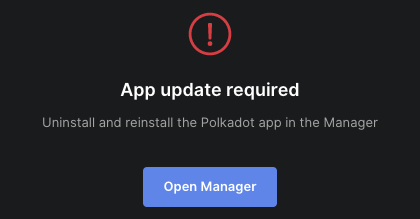
If Ledger Wallet says App update required on a Nano X, check its OS version and see when you need USB before a coin app can update.
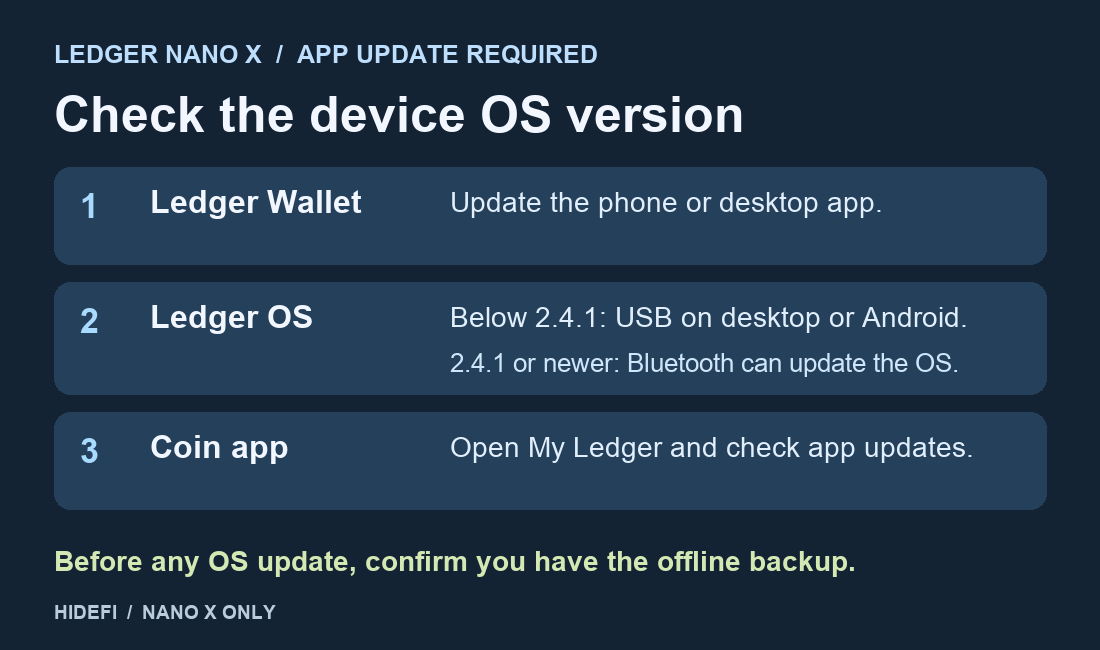
A Nano X owner could add some accounts in Ledger Live, but Cardano stopped at App update required. Tapping the update notice on the phone did nothing. The owner later confirmed the device firmware needed updating. If your Nano X shows this error, check its Ledger OS version before repeating the coin app update. A Nano X below OS 2.4.1 needs USB through a computer or a compatible Android phone for the initial OS update.
Work out which app needs an update
There are three pieces to check: Ledger Wallet on the phone or computer, Ledger OS on the device, and the coin app installed on the device. Ledger’s error guide explains how older device software can prevent My Ledger from offering the latest compatible coin app. That can leave the warning on screen even after the phone app is current or My Ledger shows no newer coin app.
Update Ledger Wallet, formerly Ledger Live, through its official download or your phone’s app store. Then unlock the Nano X and open its Control Center by holding both buttons. Ledger’s version check points to Settings → General → Ledger OS Version. Before OS 2.6.0, Ledger calls the screen Firmware version. Use the number under Secure Element to choose the update route.
Choose the OS update route for your Nano X
Before an OS update, make sure you have the correct offline backup. If you cannot locate it, stop before installing the update. An update can leave you needing that backup if the device resets. Ledger Wallet and support staff do not need to see your recovery words.
- Below 2.4.1: Follow the Nano X section of Ledger’s OS update guide and connect by USB to Ledger Wallet Desktop or a compatible Android phone. An iPhone can pair with the Nano X over Bluetooth for ordinary use, but it cannot make this initial wired update. On desktop, unlock the device and open My Ledger from the profile menu. Use Update OS if the official app offers it.
- 2.4.1 or newer: Ledger lists Bluetooth updates as supported. In the official Ledger Wallet mobile app, pair and connect your Nano X. Follow the in-app Update now prompt if an update is offered. If there is no prompt, check the installed version and the official release information first. Ledger notes that some OS updates roll out in stages.
Let the official update finish and follow the device prompts. The version check above lets you confirm the OS changed. Never enter recovery words on your phone or computer. If the update was requested by an email, follow the Ledger update email verification checks before doing anything with the message.
Recheck the coin app after the OS is current
Open My Ledger again, install all available device app updates, and retry the operation that showed the warning. For an account-add error, the practical test is whether the app now gets past the device step for the same coin. If App update required persists, note the device OS, Ledger Wallet version, coin app, phone platform and exact alert, then contact Ledger Support directly. The warning by itself does not identify a balance or account problem.
Official sources
Product interfaces and recovery policies can change. Confirm the current steps before acting.