Suiet unavailable? Check Keystone’s documented Nightly Mobile route for Sui, distinguish the app wallet from the hardware account, and verify the address.
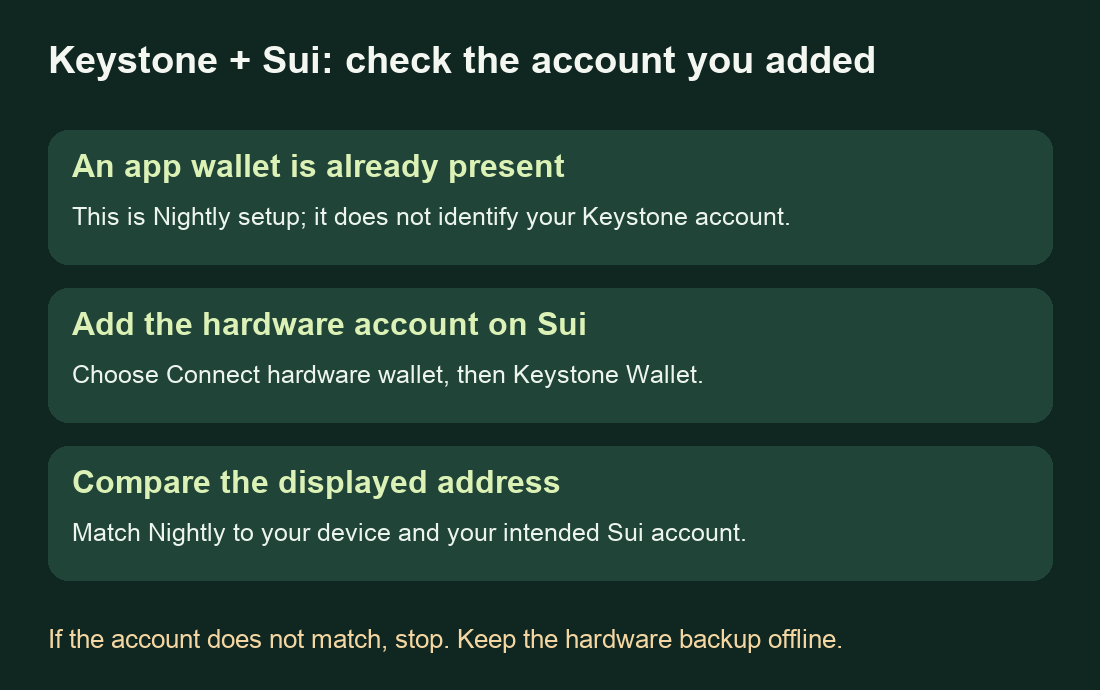
A Keystone owner who could no longer use Suiet asked for another Sui wallet. A reply pointed to Nightly and Keystone’s own connection guide. Nightly Mobile is a documented Sui companion for Keystone 3 Pro. The useful distinction is between setting up the app and adding the hardware account you actually want to view. Suiet now has an official sunset notice: its team says API services will be maintained through November 14, 2026, then discontinued. A new wallet screen is not proof that an old account has been found. User question and reply.
Check the device before adding its account
This guide is for an account secured by Keystone. A standalone Suiet software account needs its own official transition instructions. This route follows the Keystone Nightly Mobile guide, which names Keystone 3 Pro in its address-check instructions. It is not a claim about every Keystone model or Nightly Extension. Start from Nightly’s own site for its mobile download links.
Use a device whose authenticity has been confirmed. Keystone’s October 26 security statement says devices received after October 20, 2026 that use the old authentication key need additional support verification, even if they pass the normal check. If that applies, stop and follow the official authentication page before using the device. The statement does not ask existing owners to transfer assets solely because of the incident.
The tutorial’s minimums are Nightly 2.8.30 and firmware 1.6.4; those are compatibility floors, not today’s recommended downloads. Keystone’s current firmware page lists Multi-Coin 3.2.0 dated October 23, 2026. Check the current model and firmware instructions there rather than installing an old version just to match a screenshot.
The first app wallet is not the hardware account
Keystone’s tutorial starts with a Nightly wallet already set up. If you already use Nightly, it says to skip that initial setup. That first app wallet and the hardware account added afterward are separate steps; creating a fresh app wallet does not identify the account previously used through Suiet.
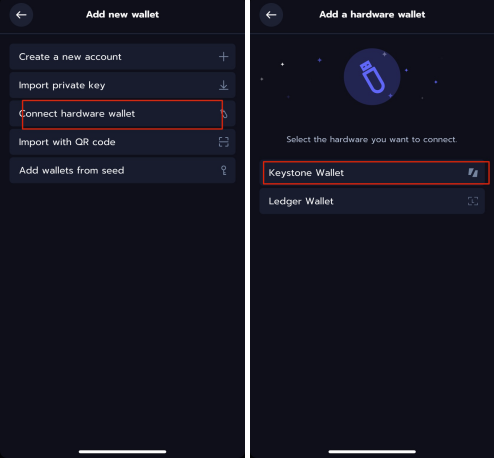
In the documented mobile flow, switch the chain to Sui, open + New Account, then choose Connect hardware wallet → Keystone Wallet. Keep the Keystone recovery words offline; the relevant choice is the hardware connection. Official connection flow.
A matching address is the useful result
The next part of the guide scans the connection QR from your Keystone and lets you select the hardware wallet. Its security check is to compare the address in Nightly with the one on your Keystone 3 Pro, exactly. Use your own device’s connection QR. Keystone’s address check.
If your aim is to view an existing Sui account, also compare that result with your own earlier receiving record. A matching chain name or familiar wallet label is insufficient. If the addresses differ, stop and ask official support about the model and account selection; this guide does not establish a migration or a way to recover another account.
Once the intended address matches, inspect that account’s assets before treating setup as complete. Suiet’s notice says not to remove the extension or clear its data until access is confirmed; review staking and application-held assets too. If you can see the correct staked SUI but cannot unstake because all SUI is staked, follow the separate Sui gas-balance explanation. That is a different question from finding a supported companion wallet.
Official sources
Product interfaces and recovery policies can change. Confirm the current steps before acting.