Base USDC transfer confirmed but missing in Trezor Suite? Verify the destination, enable Base, then check the correct account and token.
A Trezor Safe 3 owner described a small USDC test transfer on Base. The block explorer showed success, but the Tokens tab in Trezor Suite stayed empty. The question was simply, “What am I missing here?” (Original user question.) That post is older, so its replies may describe an earlier version of Suite. The steps below use Trezor's current guidance, reviewed November 5, 2026.
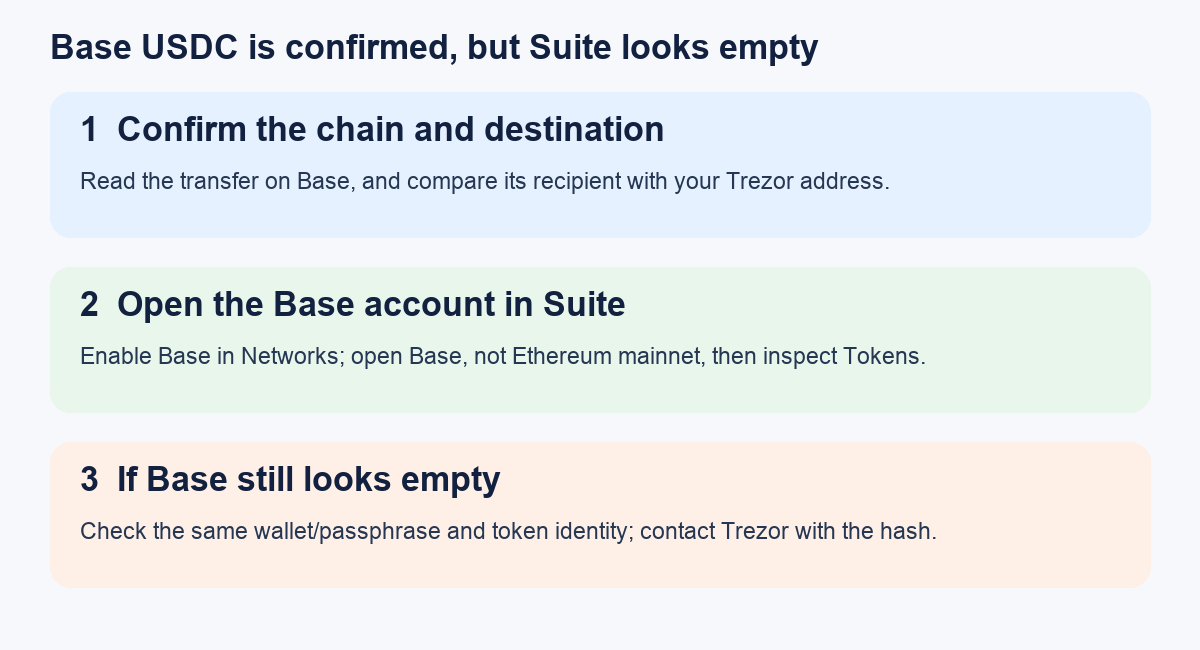
Short answer: Base USDC will not appear under your Ethereum mainnet token view just because Base and Ethereum use the same 0x address. Trezor now supports adding Base as a separate Suite account. First verify the transfer really reached your address on Base. Then enable Base in Suite, open that account, and inspect its tokens. Do not send another test transfer merely to make the display refresh.
Is the USDC actually at my Trezor address on Base?
Imagine checking the Ethereum account in Suite, seeing nothing, and assuming the transfer failed. This is an illustrative troubleshooting sequence, not a transfer HideFi made. The clue that changes the diagnosis is the network: the sender chose Base, so the first useful record is on a Base block explorer, not Ethereum mainnet.
Use the withdrawal's transaction hash to confirm the chain, success status, recipient address, and USDC token transfer. Compare the recipient with the receive address of the Trezor wallet and account you intended to use. A successful transaction by itself proves that a transaction happened; it does not prove the tokens landed in the wallet you currently have open. Trezor's missing-token guide specifically says to check both the destination and network before changing wallet settings.
- The token transfer reached your address on Base: Continue with the Base account in Suite below.
- The recipient is a different address: Stop. Enabling Base in this Trezor wallet cannot change the recipient of an on-chain transfer. Recheck the sending service's withdrawal record and which wallet or passphrase produced the address.
- No confirmed Base token transfer appears: Treat this as a transfer-status question with the sender, not a Suite display fix. Keep the hash and network details for the sender's support.
The flow above keeps the on-chain check separate from the wallet display. It does not prove ownership of any particular address.
How do I show Base USDC in Trezor Suite?
On current Trezor Suite Desktop, open Settings → Networks, enable Base, then use Load networks. Trezor's settings guide shows that disabling a network removes it from the interface without moving assets. Trezor's Base guide also describes adding the Base account with the plus button in the left pane. Open Base in the account list and inspect its Tokens view; do not keep looking under Ethereum mainnet.
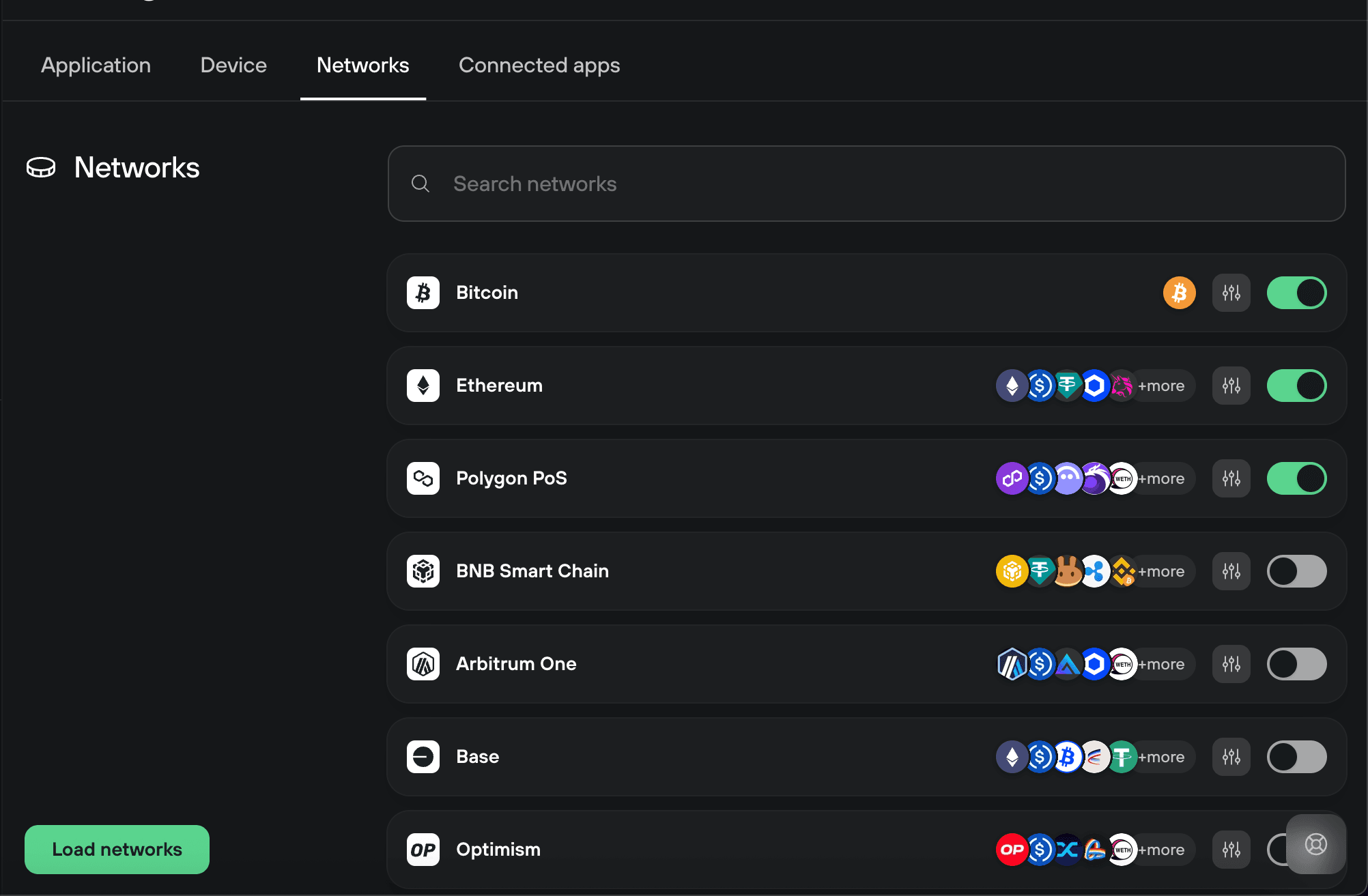
Cropped from Trezor's Suite settings guide. It shows where Base can be enabled; the screenshot's off toggle is an example, not a claim about your setup.
If you use Trezor Suite Mobile, its current settings guide says Settings → Networks controls which networks appear. The desktop screenshot above is not a mobile screen. Check that Base is enabled on the device where you are looking, then open the Base account there.
This is where old forum advice can mislead. A 2024 Trezor forum reply said Base was not directly supported in Suite at that time. Trezor's current Base guide provides an in-Suite route. Use the current product instructions rather than assuming a third-party wallet is required.
Base is enabled, but the token still is not there. What next?
First compare the Base account address shown in the Suite wallet you opened with the transaction's recipient. If they differ, check whether you opened a different Trezor device, a different account, or a different passphrase wallet. A passphrase can produce a separate wallet; our Trezor passphrase-wallet checks explain why an apparently empty wallet may be the wrong one. Do not enter your backup words into a website to “find” an account.
If the Base address matches, look at the token's contract on the explorer. Different tokens can share the name “USDC”; a familiar symbol alone is not proof that it is the expected asset. Trezor's token guidance recommends comparing the contract with the token project's official information. Check the version of Suite and reload the account after enabling Base, as Trezor's missing-token guide recommends for a supported network.
If the correct Base token transfer is confirmed to the matching address but Suite still does not display it, contact Trezor Support with the public transaction hash, chain, Suite version, and a description of the mismatch. This is a display or account-identification problem to investigate; no wallet connection, signature, seed phrase, or new transfer is required just to establish where the confirmed token went.
Official sources
Product interfaces and recovery policies can change. Confirm the current steps before acting.