See whether an NFT reached your address on the right network, then check MetaMask detection and import fields without risking a second transfer.
A MetaMask user could see an NFT transfer on Polygonscan but not in the Firefox extension. Their real worry was simple: Did the NFT reach my wallet at all? Check the current owner of the exact token on the correct chain first. If it is still owned by your selected address, a missing thumbnail in MetaMask is a display problem, not evidence that you need to transfer it again. MetaMask's current NFT guide recommends verifying ownership on a block explorer before trying to import the item.
The sequence below uses an illustrative scenario, not a transfer HideFi performed. One caution from that older Reddit thread: its discussion of which networks auto-detect NFTs reflects the product at that time. The current MetaMask guide lists Ethereum, Base, Linea, SEI, Monad, and Avalanche for NFT autodetection. A missing Polygon NFT in the extension therefore needs a different display check, while the chain record remains the first test.
Did this exact NFT reach the address you opened in MetaMask?
I would start with the transfer's public transaction hash, not with the image or collection name. On the explorer for the chain used by the sender, check the transfer succeeded, then compare its recipient with the account address currently selected in MetaMask. Find the NFT contract address and token ID too. Those identify the item more precisely than a copied title or artwork. If the recipient differs, switch to the account that actually received it; if the transfer did not complete, ask the sender or marketplace about that transaction. An import button cannot correct an unsuccessful or misdirected transfer.
A transaction's recipient is a useful clue, but for an NFT that may have moved again, also check who owns that contract-and-token-ID pair now. MetaMask explains how to review the explorer's NFT transfer history and current location. If the current owner matches your address, continue to the display checks. If it does not, stop treating this as an app-display issue.
Why is the NFT on-chain but absent from the extension?
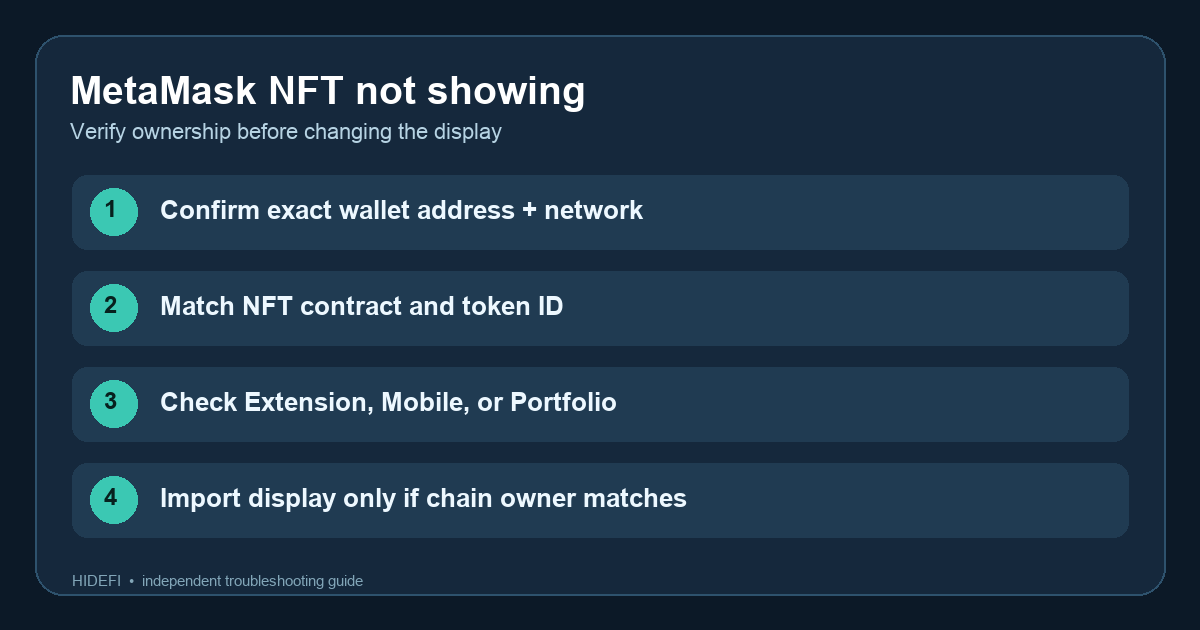
Next I would check the network and account selected in MetaMask, then the NFTs section. MetaMask says NFT detection is part of Basic Functionality under Settings → Privacy. Its current guide lists only certain networks for automatic detection; other supported NFTs can still be imported manually. If Basic Functionality is deliberately off, do not turn it on solely to troubleshoot unless you want its other enabled features too. The original diagram above keeps the order of checks clear: chain and owner before wallet display.
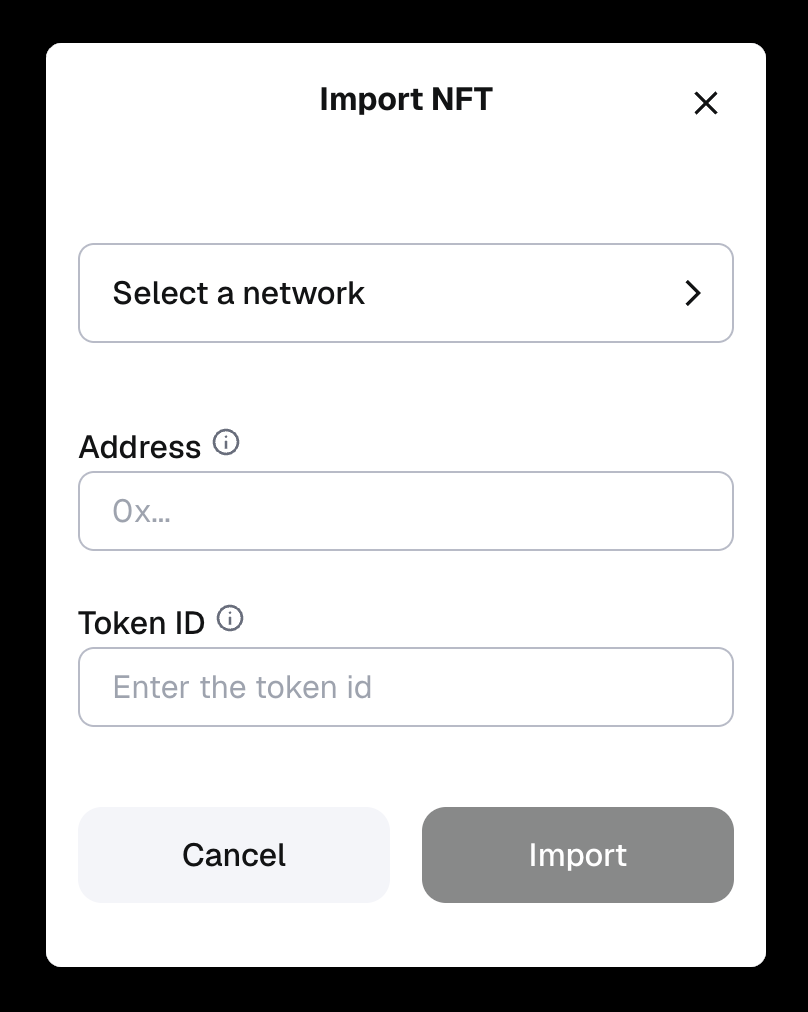
If the NFT is expected and its current on-chain owner is your address, MetaMask's manual import instructions show NFTs → Import NFT in Extension or Mobile. Select the right network, enter the NFT contract address in Address, and enter that item's Token ID separately. The blank form below is cropped from the current official guide. The address field is not asking for your own wallet address. Importing changes how MetaMask displays the NFT; it does not transfer or mint it.
What if it is missing only from MetaMask Portfolio?
Portfolio is a separate view. Its official explanation says indexing can lag after a transfer, and unsupported metadata can leave an image blank. A matching on-chain owner still matters more than a thumbnail. If the item was unexpected or appears under Suspicious or Hidden, use the unfamiliar hidden NFT guide before interacting with it; an unsolicited NFT can be a phishing lure.
The result to look for is a matching chain, current owner, contract, and token ID. If those all match and the expected NFT still will not display, contact MetaMask through its official support route with public identifiers. Do not connect to a “sync” site, sign a “refresh” transaction, or share recovery words to make an NFT appear. HideFi is independent of MetaMask and cannot view or recover your wallet.
Official sources
Product interfaces and recovery policies can change. Confirm the current steps before acting.