A missing token in the wallet view can be a network, display, or transaction-status issue. Check the chain before changing wallet settings.
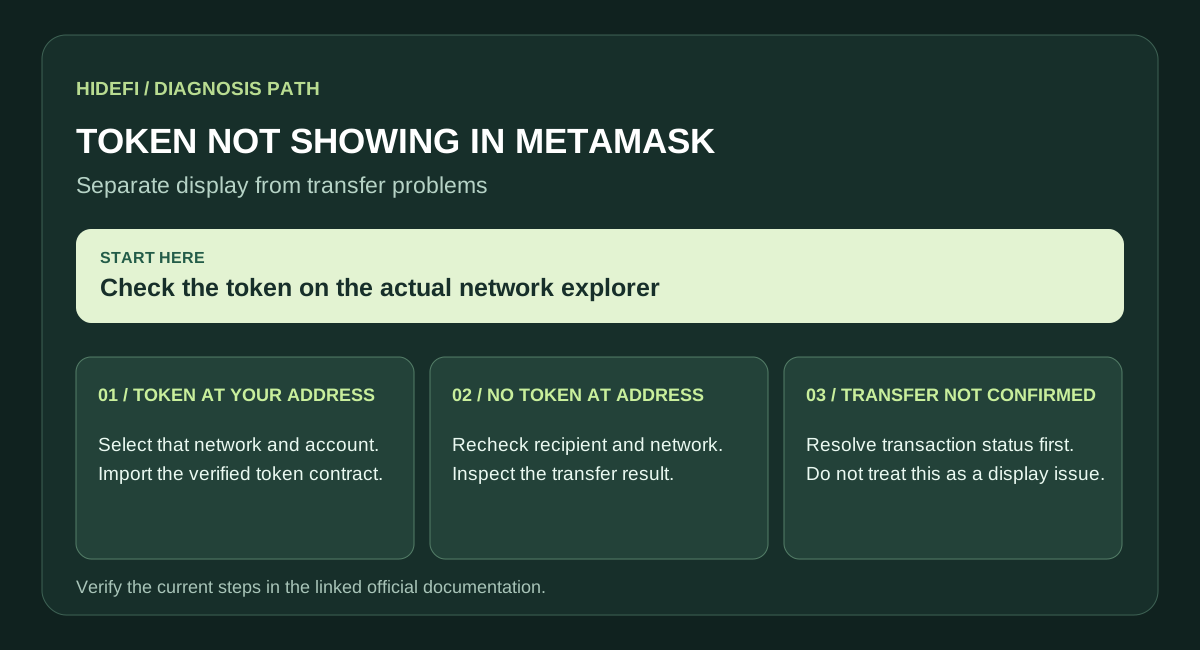
1. Confirm the transfer
Find the transaction hash in the sending app and open the block explorer for the network that was actually used. Check whether the transfer succeeded, which token contract moved, and which address received it. A transfer that has not confirmed is a different problem from a hidden token.
2. Select the network where it arrived
A token appears on the chain where it was sent. Switch MetaMask to that network, then check the receiving account address. The same-looking address across EVM networks does not mean the asset moved to the network you expected.
3. Compare the explorer balance
Search your public wallet address on that network's explorer. If the explorer shows the token at your address but MetaMask does not, the wallet may simply not display it automatically. MetaMask recommends checking the explorer balance and network. Use the token contract address from the explorer and MetaMask's official Import token flow. Verify the contract address before adding it.
4. If the explorer shows no token
Recheck the receiving address, actual network, token contract, and transaction outcome. Do not treat a wallet display fix as proof of recovery. If another party controls the destination address, contact that party through its official support channel. Never enter a recovery phrase into a website that promises to reveal a missing token.
Official sources
Product interfaces and recovery policies can change. Confirm the current steps before acting.