Trezor works in Suite but MetaMask’s Connect popup keeps loading? Check the device, current Connect flow, browser handoff, and safe next step.
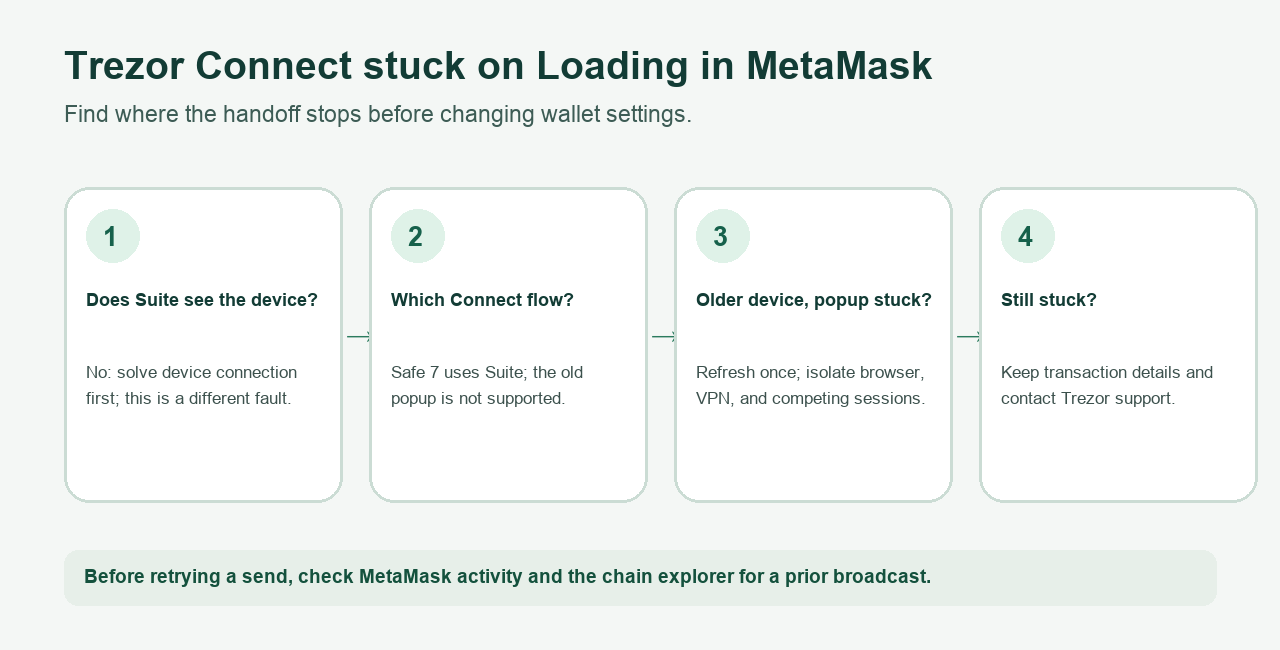
A Trezor user described a confusing split: the device connected in Trezor Suite, but the Trezor Connect window stayed on “Loading” when they tried to sign in MetaMask. They had already updated software and removed other extensions. The question was not “where are my coins?” It was “how do I get past this screen and sign?” (Original Trezor forum report.) That report is from 2025; the product flow has since changed, so the checks below use current Trezor guidance, reviewed November 5, 2026.
Short answer: First find which handoff is failing. If Suite cannot see the device either, solve the device connection first. If Suite works but MetaMask's Connect step stalls, check your Trezor model and the expected Connect flow, then isolate the browser connection. Trezor's current MetaMask troubleshooting names browser, extension, VPN, firewall, and competing sessions as possible causes. None of these checks proves a transaction was signed. Before repeating a send, check MetaMask activity and the chain explorer for a prior broadcast.
Suite works, so why is MetaMask still loading?
The clue in the user's report is that Suite could connect. That makes a completely dead USB connection less likely, but it does not prove that MetaMask, its browser popup, and Trezor Connect can complete their own handoff. If Suite also fails to recognize the device now, use the separate Trezor device detection guide instead of changing MetaMask settings.
If Suite does see your device, note where the process stops: before browser device selection, while the Connect popup says “Loading,” at a permission request in Suite, or later at a signature request on the Trezor screen. These are different stages. A frozen popup is not evidence that the wallet backup or account path is wrong. Do not type your Trezor backup words into MetaMask to work around it; Trezor's pairing guide explicitly warns that doing so removes the backup's offline protection.
Should I see a browser popup or a Trezor Suite permission screen?
This depends on the device and Connect version. Trezor's current Connect guide says Safe 7 requires Trezor Connect 9.6.0 or later and does not support the older Connect popup. Its connection flow runs through Trezor Suite. Older Trezor models can still use the older popup. Thus, advice written for a 2025 popup should not be applied blindly to a Safe 7.
For the newer Suite handoff, the expected checkpoint is a permission request naming the app that wants to connect. Trezor's MetaMask guide illustrates that screen:
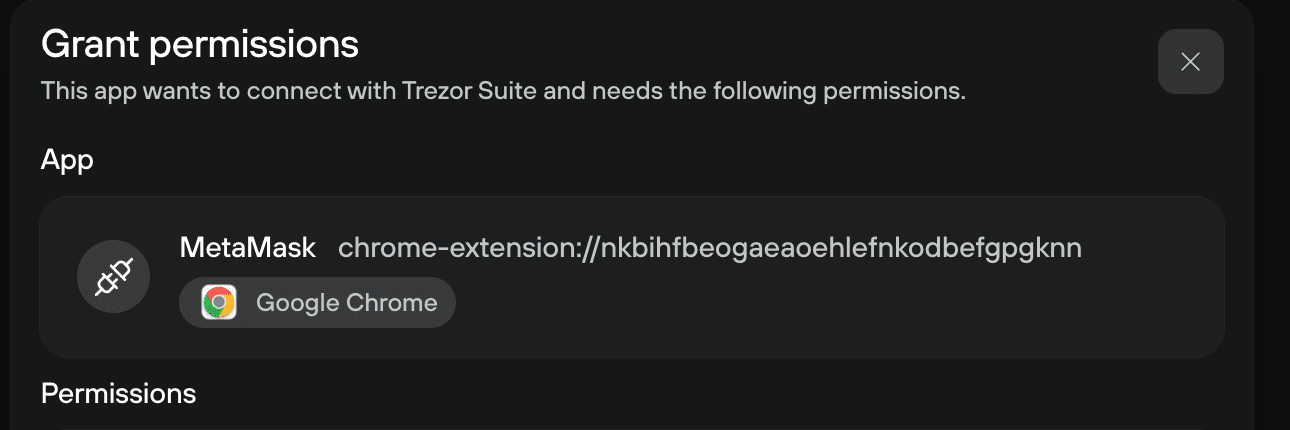
Crop from Trezor's MetaMask connection guide. It shows an example of the expected permission stage, not the stuck Loading screen or a prompt to approve an unknown request.
If a permission request appears, read the app name and requested access before you approve anything. If the window never gets that far, treat it as a connection problem. A different account address after connection is another issue: check the backup/passphrase and account path using Trezor's MetaMask issue guide, not by guessing a new seed phrase.
What can I try when the Connect popup stays on Loading?
For an older-device popup that is actually stuck, a reply in Trezor’s forum suggests refreshing the popup once and trying with Suite open or closed. The original poster did not confirm a fix, so regard this as a limited diagnostic, not a guaranteed solution. Retry the connection, then see whether you reach device selection, the permission screen, or a clear error.
Next, use Trezor's current MetaMask troubleshooting to isolate the browser: confirm the extension and firmware versions, try Chrome or Firefox, clear stale browser cache, and test a private window with interfering extensions disabled. Check whether a VPN, firewall, or another wallet tab/app is holding the device. Change one thing at a time so you know what actually made the prompt appear. If you temporarily turn off a security or network tool for a test, restore it afterward.
The visible result matters. The permission or device prompt appears: continue only if it names the app and action you intended, and review the final transaction on the Trezor screen. Loading persists in both supported browsers: stop repeating the same signature attempt. Trezor asks users with unresolved MetaMask problems to contact its support chatbot. Record your Trezor model, Suite and MetaMask versions, browser, exact screen, and whether Suite sees the device. Do not send your backup words or sign an unrelated “repair” transaction.
A working Suite connection narrows the problem, but it does not identify one universal fix. The useful endpoint is a legitimate device/permission prompt or a support case with the failing stage documented—not an unverified workaround that exposes your wallet backup.
Official sources
Product interfaces and recovery policies can change. Confirm the current steps before acting.