Phantom found several accounts after you imported one recovery phrase? See why this happens, how to choose by public address, and what to check if none match.
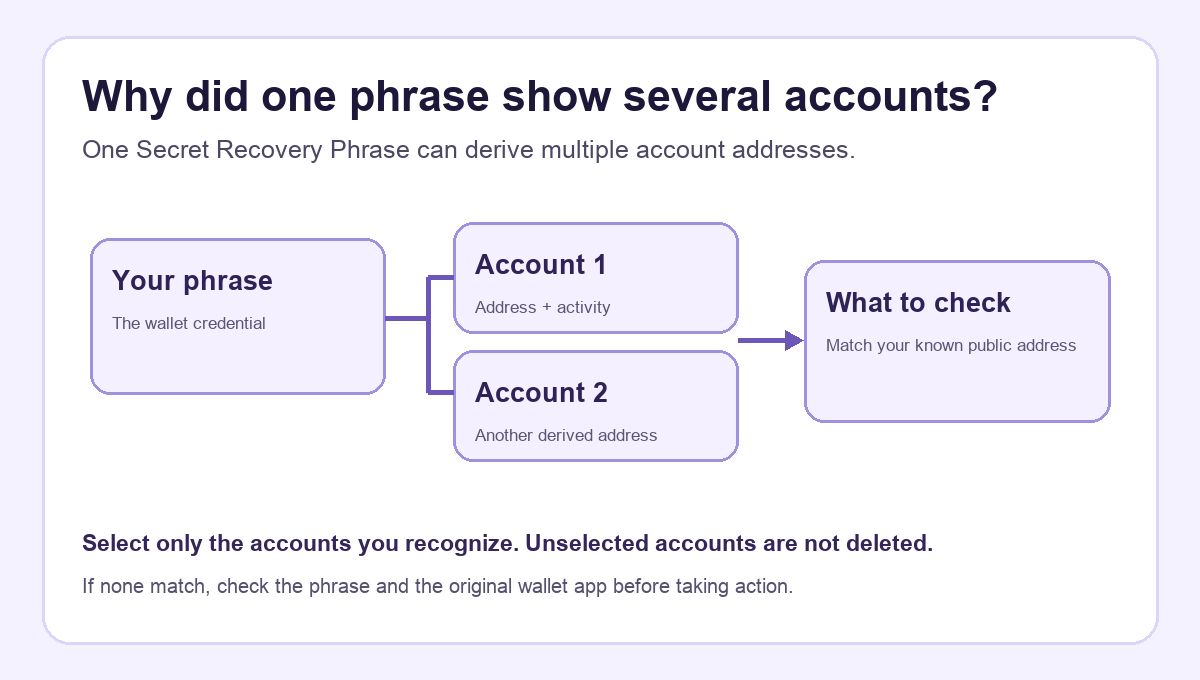
A Phantom user asked why importing one wallet offered several addresses they did not recognize. If I saw that screen while trying to restore one account, I would wonder whether I had entered the wrong phrase or accidentally opened somebody else’s wallet. Several choices can be normal: one Secret Recovery Phrase can generate multiple accounts, and Phantom looks for accounts with previous onchain activity. The first useful check is whether any displayed public address matches the account you expected—not whether the account is called “Account 1.” Phantom explains the extra-account screen here.
Why does one Phantom recovery phrase show multiple accounts?
Think of the phrase as the backup for a set of possible accounts. Each account can have its own address and transaction history. Phantom’s import screen is showing accounts derived from the phrase you entered; it is not telling you that those addresses belong to unrelated people, and it has not created a new recovery phrase for every row. Phantom’s wallet-and-account explanation also distinguishes these phrase-derived accounts from a private key or another phrase imported separately.
The diagram above is the mental model I use: one phrase → several account choices → compare the public address you know. It is easy to mistake the list for a warning because the import flow may show activity on accounts other than the one you remember. Activity only tells you that Phantom found a prior onchain record for that derived account; it does not prove which account you meant to restore.
Which account should I choose on the Import Accounts screen?
On the current Phantom import screen, choose View Accounts, inspect the choices, select the account or accounts you want, then choose Continue. The official illustration below shows the entry point before any account addresses appear.
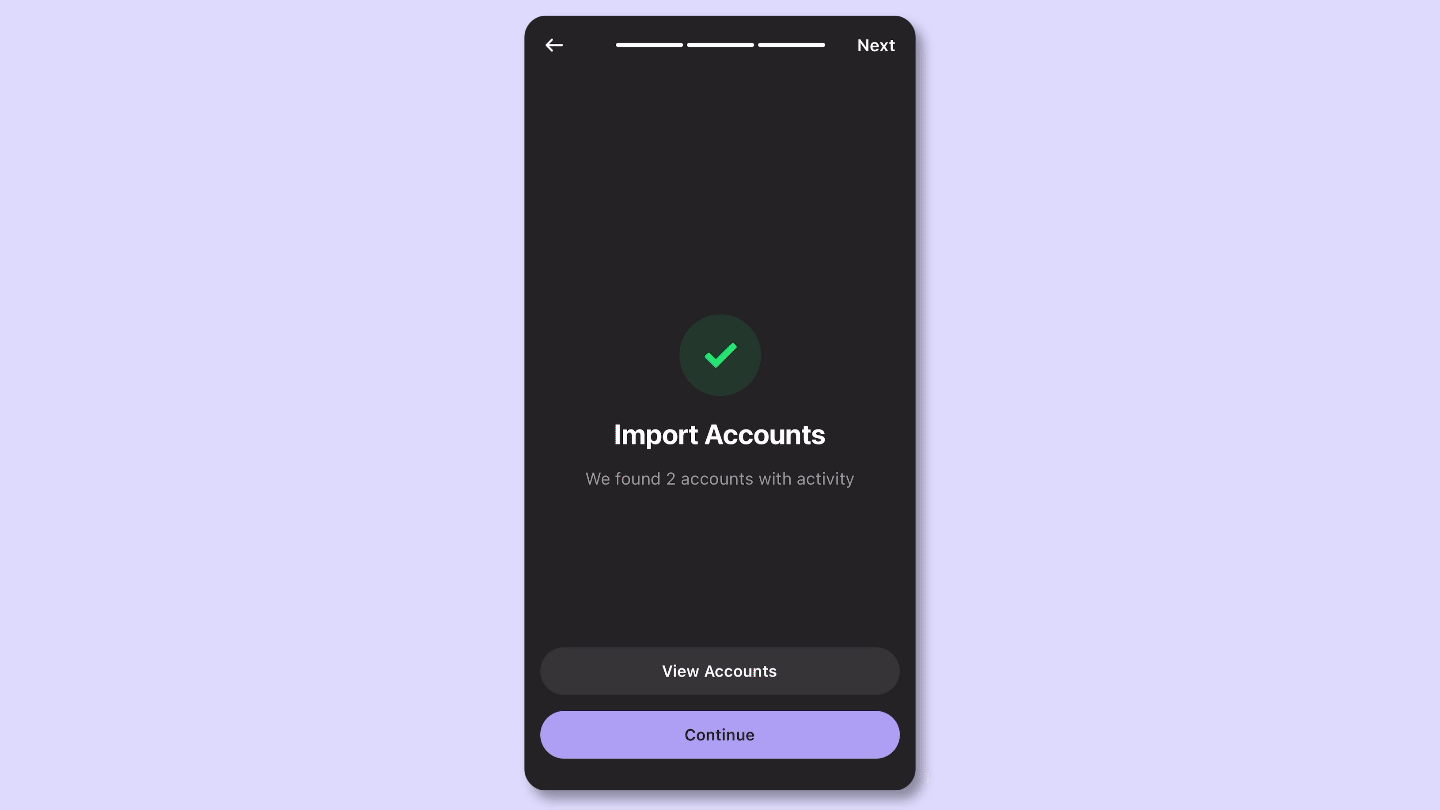
Screenshot excerpt from Phantom’s extra-accounts guide, reviewed November 5, 2026. It shows the import entry point, not a verified account match.
If you have an old receive address or a public transaction record, compare that public address with the candidate shown for the same network. Solana and Ethereum addresses for one account are different, so compare Solana with Solana, or Ethereum with Ethereum. You do not need to share your phrase or private key to make this comparison. Selecting an account adds it to Phantom; leaving another row unselected does not delete it. Phantom says you can import it later with the same phrase.
What if none of the addresses look like mine?
That is a different problem from simply seeing extra accounts. First check that you used the phrase for the intended wallet. A different valid phrase opens a different set of addresses. If you still have access to the app where you originally created the wallet, compare there before resetting anything. Phantom’s import troubleshooting guide says that a wallet from another app may also use a derivation path Phantom does not support. A derivation path is the rule that turns the same phrase into a particular account address; an unfamiliar list alone cannot prove the phrase is wrong.
If the expected account exists in the original app but not Phantom, keep using the original app while you check Phantom’s supported paths. Do not type your phrase into a “wallet recovery” website or give it to someone who replies to a forum post. If you are restoring after moving to a new device, the separate Phantom new-phone sign-in guide covers the login route. The result here is narrower: extra derived accounts are usually expected; select by a known public address, and investigate if none match.
Official sources
Product interfaces and recovery policies can change. Confirm the current steps before acting.