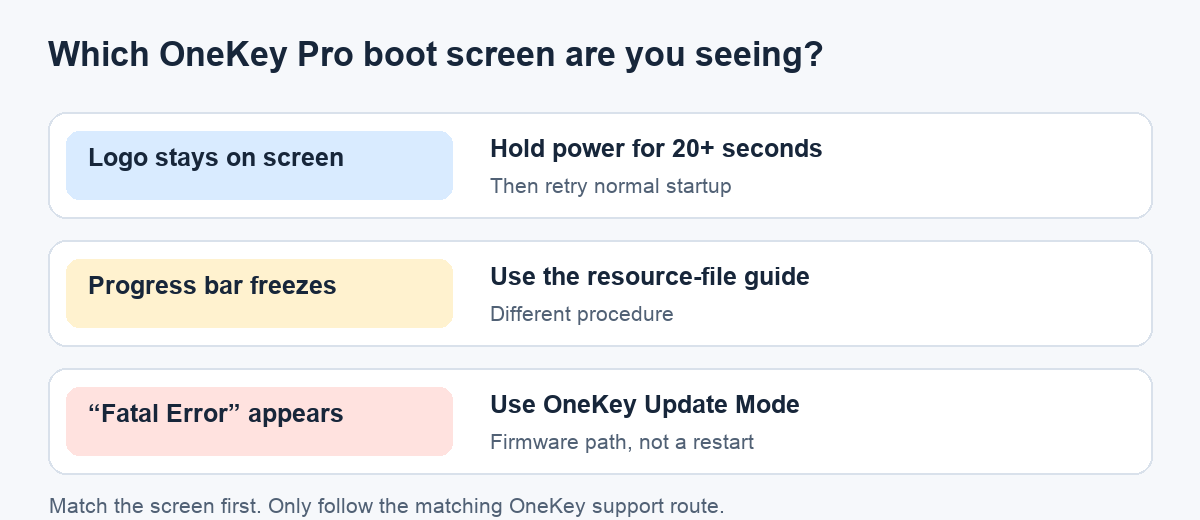
If OneKey Pro stops at its startup logo, try the official 20-second power-button step. A frozen progress bar or Fatal Error needs a different route.
The OneKey Pro logo appears, but the wallet never reaches its normal screen. It is tempting to treat that as a broken wallet and start reinstalling firmware. If the device is simply stuck on the logo, OneKey’s current first step is a long power-button restart—not a firmware install. Turn it off, power it on normally, and, when the logo hangs again, hold the power button for at least 20 seconds before releasing it. Then check whether a normal start reaches the wallet screen. OneKey’s logo-screen instructions describe that sequence.
Here is an illustrative troubleshooting moment, not a test we performed: I see the white OneKey mark, wait for the PIN screen, and nothing changes. The useful clue is what is actually on the display. OneKey publishes separate instructions for a frozen logo, a frozen boot progress bar, and a visible “Fatal Error.” Mixing those routes could send me into an unnecessary firmware procedure.
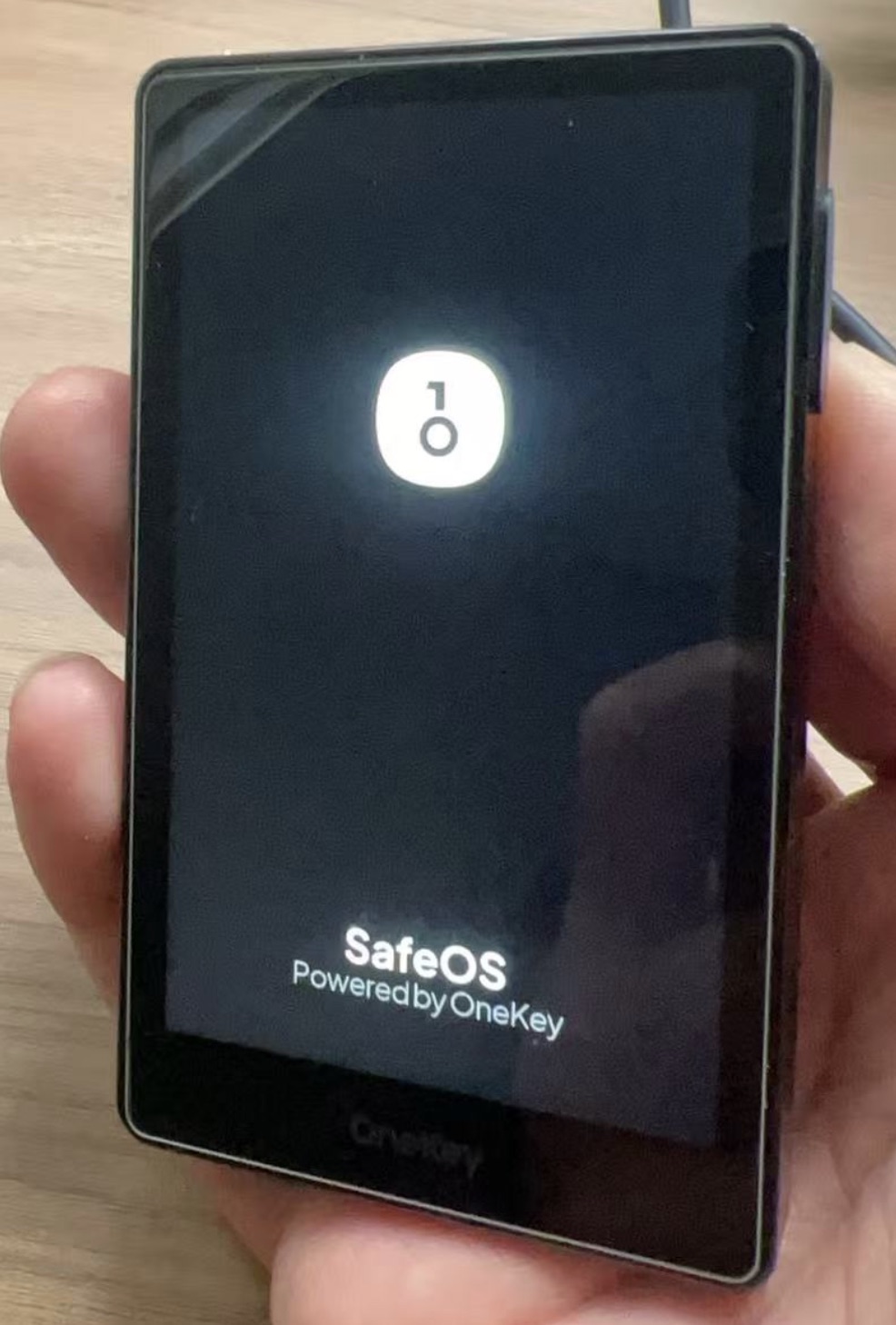
Is it really the logo-only screen?
Compare the screen with the photo. For this guide, “stuck on the logo” means the startup image remains and the device does not reach its normal interface. There is no progress bar that stops partway and no text saying “Fatal Error.” If either appears, jump to the matching official route below. The distinction matters because OneKey’s three guides call for different actions.
OneKey Pro stuck on logo: what should I try first?
Shut the Pro down. Press the power button normally to start it again. If it again stops at the logo, keep the power button pressed for at least 20 seconds, then release it. Try a normal start and look for the usual wallet interface. This is the sequence in OneKey’s April 2026 logo-screen guide. It does not ask you to erase the wallet, enter a recovery phrase, or download a firmware package for this symptom.
If the normal screen returns, the immediate boot problem is resolved. If the logo still stays up, the official article’s next step is to contact OneKey support through its website. Tell them the model, what the screen shows, and that the long power-button step did not help. Do not send anyone your recovery words or PIN. A failed restart is not proof of a specific hardware or firmware cause.
What if I see a progress bar or “Fatal Error” instead?
A frozen progress bar is a different case. OneKey’s progress-bar guide uses a Boardloader and resource-file procedure, including a battery and transfer precaution. Follow that page only if the screen matches, and check its current instructions before moving files to the device. The logo-only restart above does not establish that the resource-file procedure is needed.
If the display explicitly says “Fatal Error,” OneKey’s Fatal Error guide instead routes you to Update Mode and an official firmware upgrade, then to support if the error remains. Its diagonal swipe goes from top right to bottom left. The progress-bar article describes a different Boardloader swipe. Do not guess the mode from memory or follow a video for a different startup screen.
The short version: identify the screen → try the logo-only restart only for a logo-only freeze → use the matching OneKey guide or official support if that does not fit. A device that will not boot can be frightening, but this guide cannot diagnose its cause or promise a repair from the screen alone.
Official sources
Product interfaces and recovery policies can change. Confirm the current steps before acting.