If a custom network vanished after reinstalling MetaMask, compare your public address, check the chain, and restore the network setting safely.
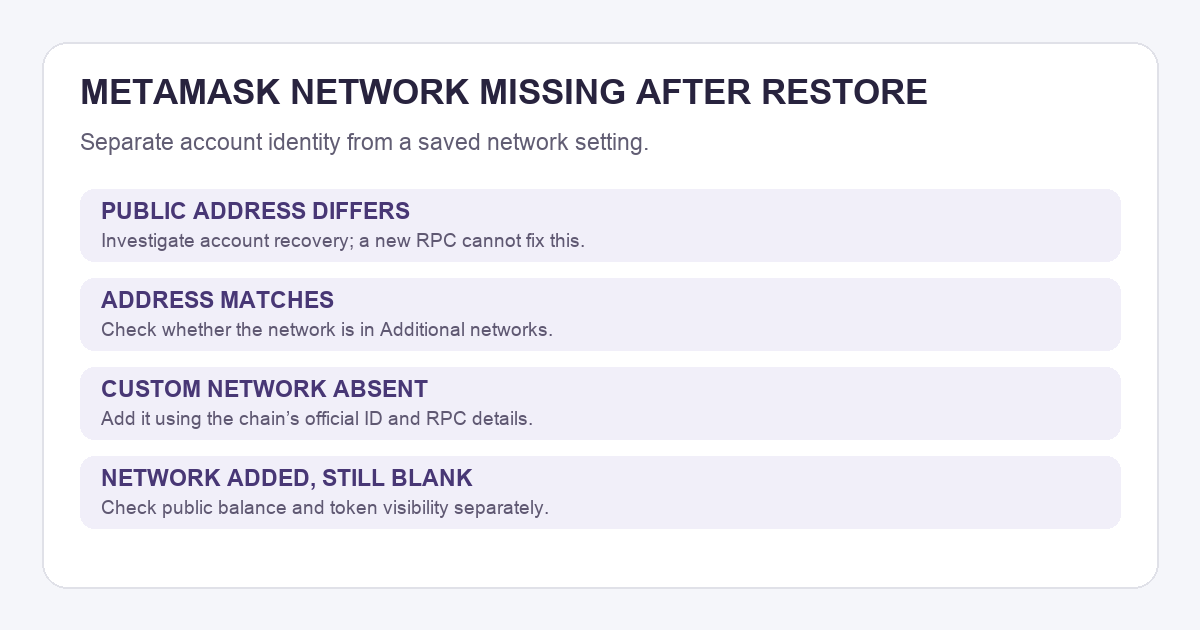
A MetaMask user described reinstalling the extension and finding their BSC network gone. They had already bought tokens, so the missing network looked like a missing balance. The first useful distinction is simple: a custom network can disappear from MetaMask’s menu without the assets leaving your public address. MetaMask says a fresh installation does not keep custom networks that were saved locally.
Here is an illustrative way to work through that worry. The checks are public and read-only; this is not a wallet HideFi restored. First, I would compare the address. Then I would look for the old chain in the network menu. Only after those checks would I add the network back.
Is this the same wallet address as before?
Copy the public address from the account now selected in MetaMask. Compare it with an address you already recorded from an old deposit or transaction. A familiar account name is less useful than an exact address match. If the addresses differ, adding BSC or another network cannot reveal tokens held by the old address. Follow the missing accounts after restore guide before changing network settings. Never paste a Secret Recovery Phrase into a network-add website or send it to someone offering help.
If the public address matches, check its balance on the relevant chain’s explorer. This separates an on-chain balance from what the wallet interface happens to show. It also helps identify which chain you actually need; a token name alone does not establish that. The original diagram above shows why this address check comes first.
Why did my MetaMask network disappear after reinstalling?
The missing entry is a local setting. MetaMask’s current recovery note says custom networks need to be re-added after reinstalling or restoring from a Secret Recovery Phrase. Its network guide also says a network added in Extension does not automatically appear in Mobile, or the other way around. So seeing the same account on a new device does not mean its old network menu came with it.
How do I add the missing network back?
Open MetaMask’s Networks menu and look under Additional networks first. The official guide says popular networks can be added there directly. If the EVM network you need is absent, choose Add a custom network in Extension, or the Custom tab on Mobile. Use the chain ID and RPC details from that network’s own official documentation, then check them before saving. An RPC is the server your wallet asks for chain data; an untrusted endpoint can give you a misleading view.

Select the added network and check the same public address again. If the explorer has the tokens but MetaMask still hides them, use the token display checks rather than sending funds to test the wallet. If MetaMask cannot connect to the chain, use the connection error guide. The outcome to look for is the original address on the intended chain, with its balance visible in the explorer and the network available in MetaMask. Re-adding a network only restores the local connection; it does not move or recover funds.
Official sources
Product interfaces and recovery policies can change. Confirm the current steps before acting.