Ledger E8 means a request cannot be fully decoded. Pause signing, check Clear Signing support for the exact action, and review any earlier approval.
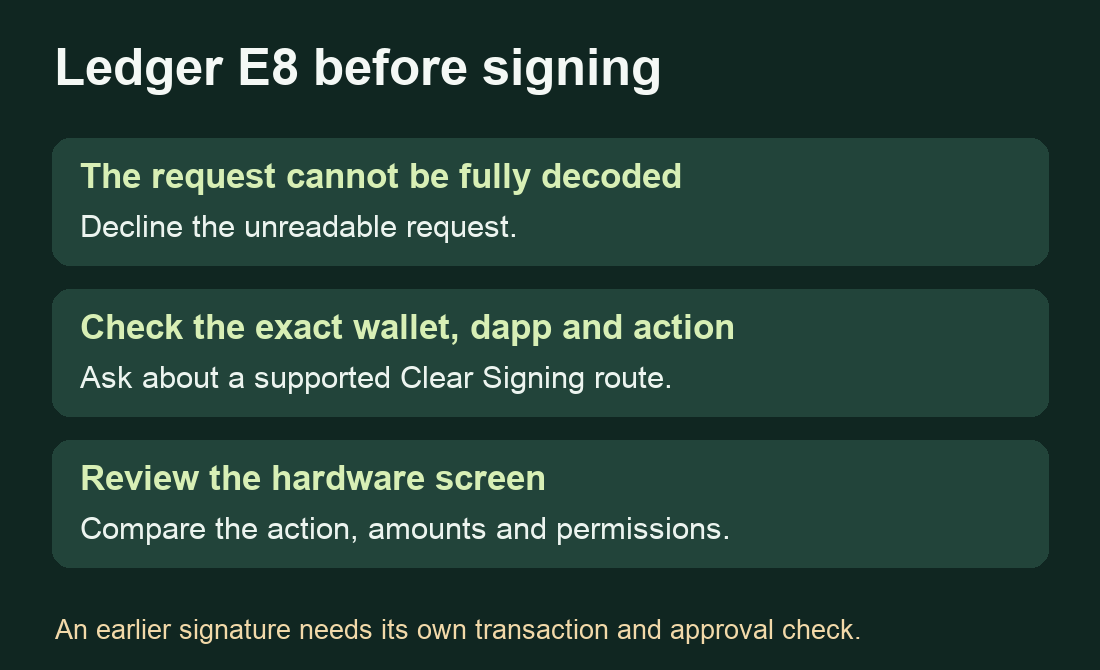
A Ledger owner trying to compound staking rewards through MetaMask saw “This transaction cannot be trusted” on the device. The natural question was how to get past it. Ledger's current E8 explanation gives a reason to pause first. The signer cannot fully decode that request, so approving it could authorize an action you have not been able to inspect. Decline the unreadable request and establish a supported way to review the intended action before proceeding. First-hand question, Ledger's E8 explanation.
What the E8 warning tells you
Ledger's current help calls this E8 — Security Risk Detected. Its illustrated screen says the transaction cannot be fully decoded. Clear Signing is the feature that turns encoded instructions into details you can review on the hardware screen. When those details are unavailable, you face blind signing. Ledger's E8 guide, Clear Signing overview.
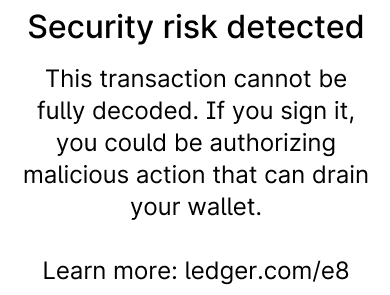
The message identifies a limit in what the device can show for that request. You still have to establish whether the requested contract action is one you intended. A familiar website, a past successful transaction, or a reassuring preview on your computer leaves that review unfinished when the hardware cannot describe the action. Ledger warns that a simulation and a contract's decoding information have their own limits. Ledger's explanation of transaction review.
Check whether this particular action supports Clear Signing
Write down the wallet interface, device model, network and action you were trying to perform, such as claiming rewards or approving token access. Go directly to the dapp's official documentation and Ledger Support to check whether that combination has a Clear Signing integration.
Ledger's integration rules distinguish the wallet route from the protocol's supported contract interaction. A service appearing in a supported list does not establish that every route to it can display every request. Ask about the exact action and network, especially if the warning appeared through a browser extension. Ledger's integration rules.
If an officially supported route is available, the check is what your Ledger actually displays. Read the action and all available details on the device. Compare the amount, recipient or contract and permissions with what you meant to authorize. If anything is unexpected or remains unreadable, decline and ask the product's official support to clarify it. The guide cannot establish a safe signing route for the original staking report.
If you have already signed something
First establish which request you approved and whether it produced an on-chain transaction or an approval. Preserve its public identifier and review its actual result before another attempt. A warning encountered on a later request does not establish what an earlier signature authorized.
For an unexpected approval made through MetaMask, use its official support route and the steps for securing and reporting a MetaMask scam when there is evidence of malicious activity. Keep recovery words offline. Avoid another signature offered as a way to repair the warning or recover funds.
Official sources
Product interfaces and recovery policies can change. Confirm the current steps before acting.