Use Positions on chart for entry, liquidation and TP/SL overlays. Past trade marks use a separate control; a line’s × can change a trade.
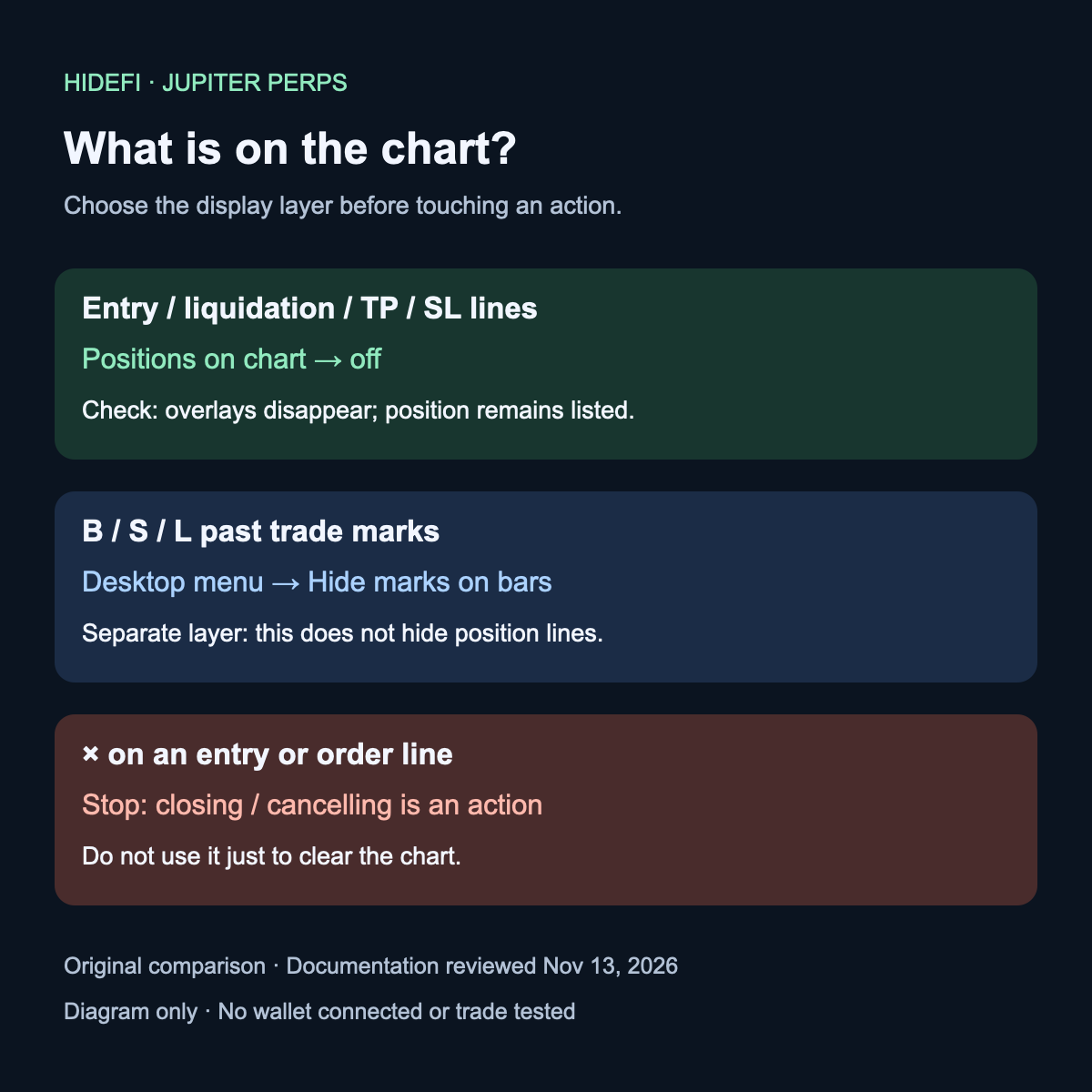
To hide Jupiter Perps position lines, turn off Positions on chart. A line’s × is a trade action, so it is the wrong control for clearing the view.
The distinction matters when a label covers the candles and looks like something to dismiss. A historical mobile-browser question asks whether positions can still be hidden after an interface change. That question refers to a legacy version; today’s Jupiter Perps FAQ says there is no previous chart version to switch to.
Find Positions on chart before touching a line
Jupiter’s Positions & Collateral guide places this toggle beneath the desktop chart, near Close All. In a phone browser, look above the chart. It controls entry, liquidation and take-profit/stop-loss overlays.
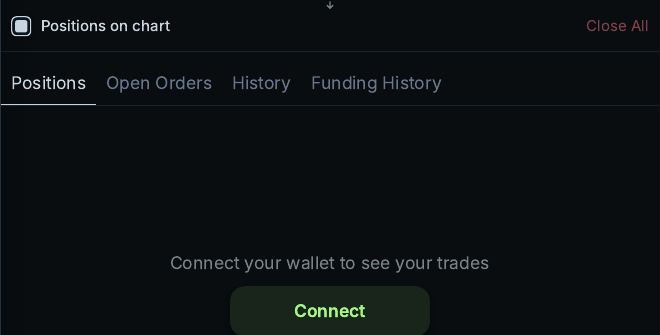
Jupiter interface, captured by HideFi on November 13, 2026: cropped Chrome print output from the public Perps page. Print layout differs from the interactive view. No wallet was connected; the control was not toggled and funded-position behavior was not tested.
Check the chart and the position list separately
After changing this display setting, the intended result is fewer overlays while the position remains in the Positions list. Hiding a line is not evidence of an exit, and it does not reduce the position’s risk. Tick the same control to show the overlays again; Jupiter saves that choice in the browser across markets.
If a close, cancellation or wallet-approval action appears instead, stop. Jupiter documents that × on a SOL, ETH or BTC entry line closes the whole position after wallet approval. On a TP/SL or limit-order line, × cancels that order. These controls change the trade.
If B, S or L symbols remain
Those are past-trade marks, a separate chart layer. On desktop, the FAQ points to the chart’s right-click menu and Hide marks on bars. In a phone browser, a long press opens the crosshair instead, so that menu is out of reach. Jupiter’s separate mobile app does not draw these past-trade marks on its Perps chart.
Identify the platform and symbol before trying another control. If the position toggle is missing, use the official site’s help route with the browser and screen-width details. A missing control does not justify signing or cancelling anything. If your actual problem is an unfilled spot order, use the separate Jupiter limit-order checks.
Official sources
Product interfaces and recovery policies can change. Confirm the current steps before acting.