If Sparrow disappears from macOS Local Network settings after an update, check the permission list, version 2.5.6, and a maintainer-tested launch workaround.
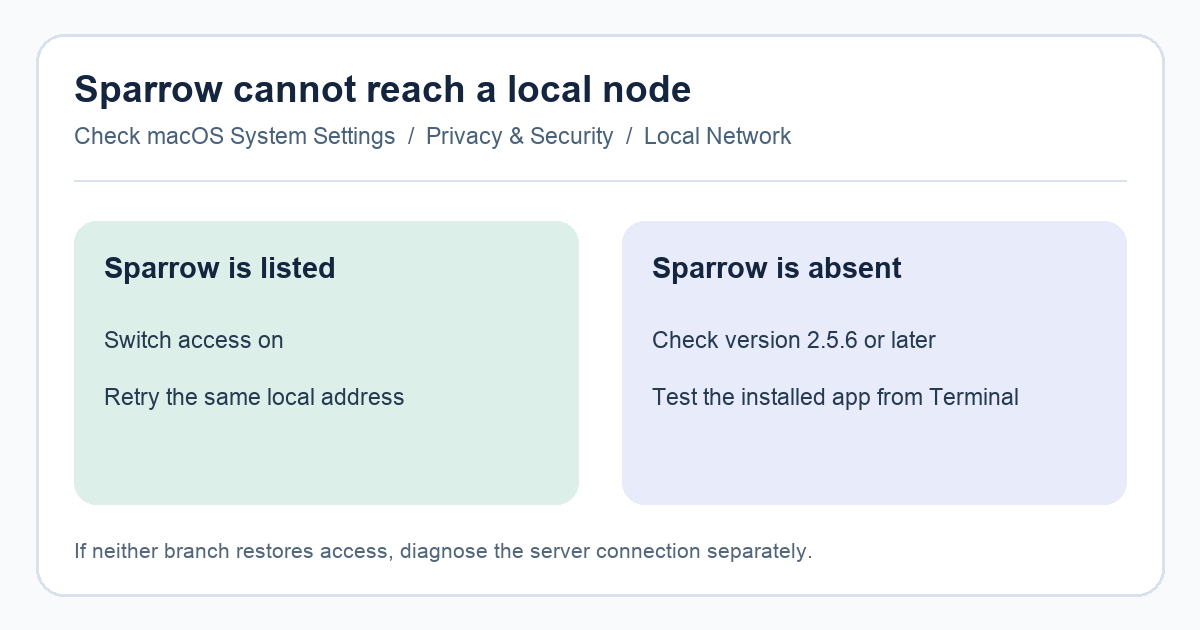
After upgrading to macOS 27, a Sparrow user reported that the wallet could no longer reach the local network and had disappeared from System Settings → Privacy & Security → Local Network. The usual instruction to switch Sparrow on could not help because there was no Sparrow entry to switch on. This is a permission-list problem to check before changing your Bitcoin node or wallet configuration.
First, is Sparrow in the Local Network list?
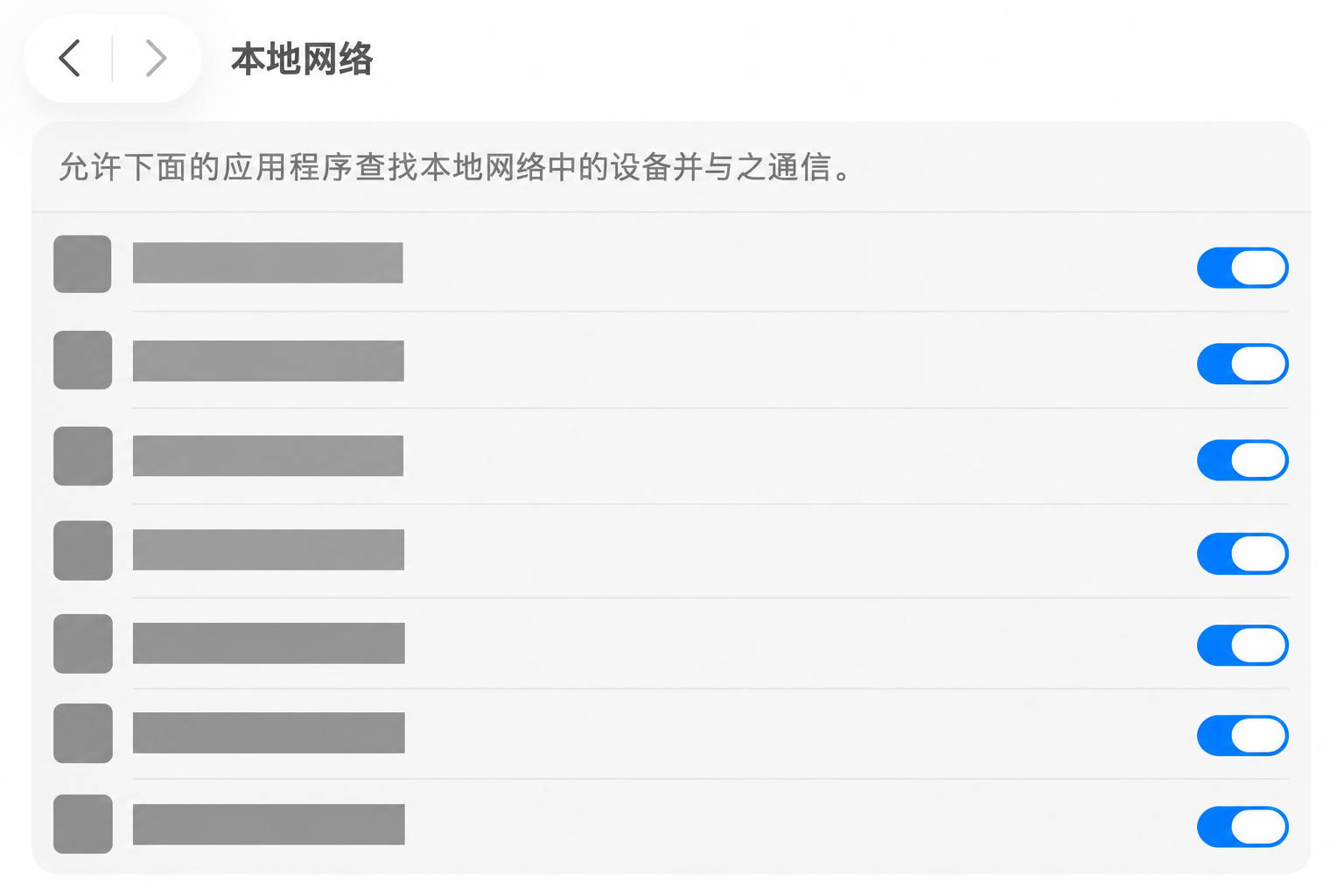
Open System Settings → Privacy & Security → Local Network. Apple’s macOS 27 guide says this is where listed apps can be allowed to find and communicate with local devices. If Sparrow appears but its switch is off, enable it and retry the local node connection. Sparrow’s FAQ specifically recommends that step for a “No route to host” error when connecting to a .local address on macOS 15 or later.
If Sparrow is absent from the list, that FAQ step cannot be completed. Do not treat the missing entry as proof that the node is offline or that your wallet file is damaged. The distinction matters: the decision graphic at the top compares these two states, while the next step addresses the reported missing-entry case.
What can you try when Sparrow is missing?
Check the installed Sparrow version. The official 2.5.6 release notes say the macOS launcher now has a Sparrow-specific Mach-O UUID; the Local Network permission may be requested again. If you use an older release, obtain the current installer from Sparrow’s official download page and follow its normal verification instructions. “May” is important: the release note does not promise that every macOS 27 permission-list problem is fixed.
For the reported case, a Sparrow maintainer suggested starting the already installed app from Terminal:
/Applications/Sparrow.app/Contents/\
MacOS/Sparrow
Paste both lines together; the backslash joins them into the exact installed-app command from the maintainer.
The reporter confirmed that this restored access on their machine. The issue remains open, so treat Terminal launch as a case-specific workaround, not a guaranteed repair. The command assumes Sparrow is installed at /Applications/Sparrow.app; if your app lives elsewhere, use its actual path rather than downloading an unfamiliar replacement. Close any existing Sparrow instance first so the test really uses the Terminal launch.
How do you tell whether the permission was the cause?
Retry the same local server address after the permission change or Terminal launch. If the connection now works, the result points to the macOS permission path in this case. If Sparrow still cannot connect, compare the address and server status using Sparrow’s node connection guide; a different error needs its own diagnosis. If the new error says it cannot find Bitcoin Core’s .cookie file, follow our Sparrow cookie-file path guide instead. Do not reset privacy databases, expose node credentials, or enter a seed phrase to troubleshoot a network permission prompt.
The checkable outcome is a working connection or a narrower unresolved symptom. A missing Sparrow entry after updating and relaunching is worth reporting to the Sparrow issue with your macOS and Sparrow versions, without wallet secrets or server credentials.
Official sources
Product interfaces and recovery policies can change. Confirm the current steps before acting.