If Hyperliquid shows your address but your mobile wallet never asks you to sign, check and reset the connected session before trying again.
A mobile-wallet user described an awkward state: Hyperliquid appeared connected, but pressing Establish Connection never sent an approval request to the wallet. In their public question, moving to another wallet did not fix it. That detail matters: a missing request does not automatically mean the wallet itself is broken. If your address is visible on Hyperliquid but no request reaches your mobile wallet, disconnect the site, remove its old session from the wallet's connected-app list, and pair it again. This is Hyperliquid's current advice for a stale WalletConnect session, not a promise that every failed connection has the same cause.
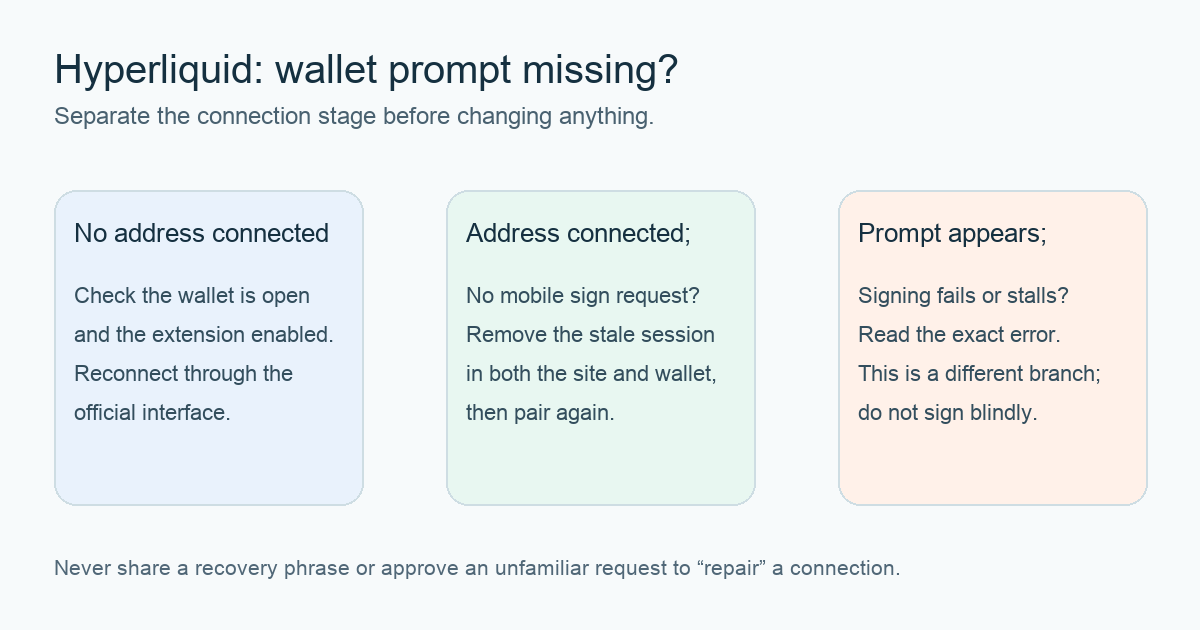
The confusing part is that the connection can seem half-finished. One screen shows an address; the phone shows nothing to approve. I would first identify which step is missing, then try the smallest applicable fix. The diagram above is an original diagnostic aid, not a screenshot of the app.
Does Hyperliquid show an account address yet?
If no address appears, you are still at the initial wallet connection. Open the wallet, check that the browser extension is enabled and up to date if you use one, and return to the official Hyperliquid interface. Hyperliquid also suggests a hard refresh when an extension does not load or a connection stalls in its wallet connectivity guide. Reconnect and see whether the wallet actually presents a request. A blank phone notification alone is not enough to diagnose the site; look inside the wallet's active connection or request screen too.
If an address is visible, do not repeatedly press the action button. Continue with the mobile-session check below. Keep track of the address you expected to connect so you can tell whether a later reconnect selected a different account.
Why does Establish Connection do nothing?
People describing older screens may call the button Establish Connection. Hyperliquid's current onboarding instructions describe Connect, followed by Enable Trading and a gasless signature. The exact label may differ from an older post or your current wallet flow. What matters for this question is that the site asks you to sign but the wallet never displays that request.
For a mobile wallet connected through WalletConnect, follow the sequence in Hyperliquid's support page: disconnect on Hyperliquid; in the wallet, find connected apps or sessions and remove the old Hyperliquid connection; then start a fresh connection from the official interface. Check the new request in the wallet before signing. Menu names vary by wallet, so look for its connected-app or WalletConnect session list rather than following a guessed tap path.
A second user report says disconnecting and reconnecting restored a button that had done nothing for them. That is a useful clue, but it is one person's outcome. If a fresh session still produces no request, stop and collect the exact screen state instead of trying unrelated network switches or importing your recovery phrase into another wallet.
What if the request appears but signing still fails?
That is a different problem. Read the wallet's exact error or rejection message and verify the request's origin and action before approving anything. Do not sign an unfamiliar request just to make the warning go away. If connection succeeds and a later spot-to-perps transfer hangs at Confirm, use our transfer-specific checklist to separate a missing signature from a balance that has already moved.
If you cannot complete the connection, use Hyperliquid's official support route. Include the wallet app and version, browser, whether an address appeared, which button was shown, and the exact error text. Do not send anyone your recovery phrase or private key, and do not accept support via unsolicited direct messages. The useful first split remains simple: no account address means troubleshoot initial connection; an address with no mobile prompt means check the stale session on both sides.
Official sources
Product interfaces and recovery policies can change. Confirm the current steps before acting.