Check whether Solflare reached your Ledger, the device rejected signing, or the transaction was submitted before choosing the next step.
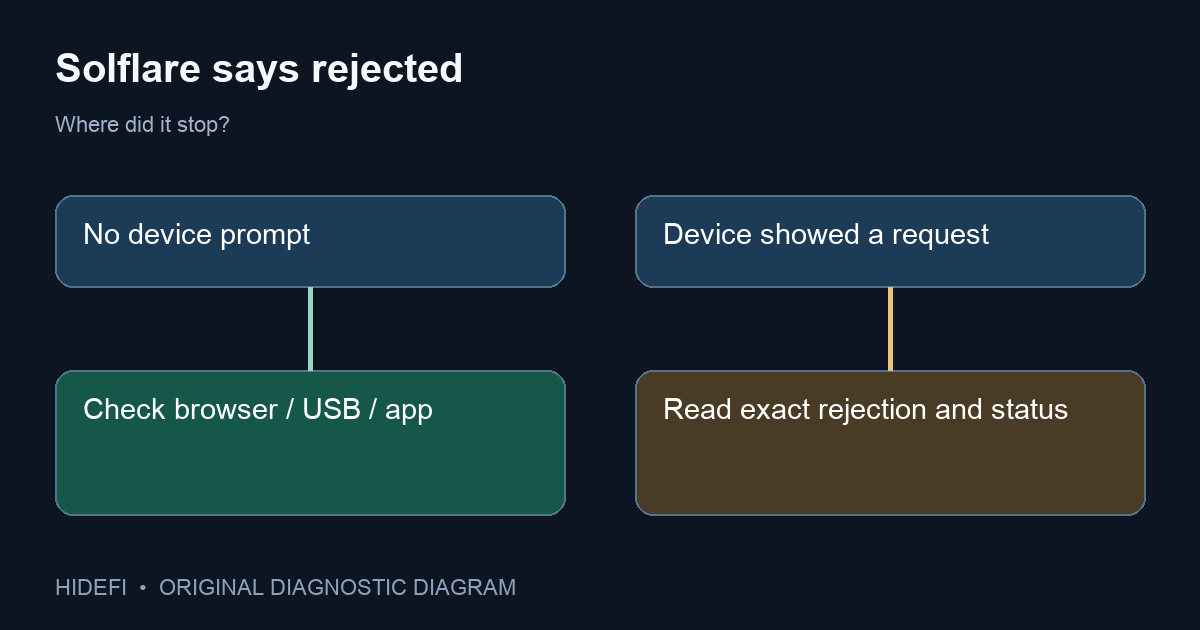
A Solflare user reported that transactions were rejected as soon as Ledger approval should appear. They had already enabled blind signing and tried several browsers. That detail matters: “transaction rejected” describes the result, not the cause. Start by noticing whether the Ledger displayed a request at all, then check the matching branch below. Solflare's current Ledger troubleshooting page covers both connection and signing conditions.
No approval request reached the Ledger
If the device never showed a transaction, treat this first as a connection problem. Confirm that Ledger is unlocked and the Solana app is open; Solflare says the device should show “Application is ready.” Close Ledger Live completely, because it can interfere with other wallet connections. On desktop, use a supported browser such as Chrome, Brave, or Edge; Solflare says Firefox is not supported for this connection. Then reconnect the device and try a cable or USB port that can carry data. These checks have an observable result: the device starts displaying a request, or the browser still cannot communicate with it.
If your browser remembers a bad USB permission, Solflare's guide also recommends removing the connected USB device in the browser's privacy/security settings and adding it again. Do this only in your own browser settings; it does not require importing a recovery phrase.
Ledger displays the request, then rejects or fails
Now a missing USB prompt is no longer the main symptom. Read the exact message on the device and in Solflare. For a Solana transaction that requires blind signing, Solflare says to check Solana app → Settings → Allow blind signing → YES. Enabling blind signing makes transaction details harder to inspect on the device, so confirm the site and intended action before approving anything. The public reporter had blind signing enabled already; repeating that setting was not a demonstrated fix for them.
Solflare also recommends current Ledger firmware and Solana app versions. If the error persists after the device can communicate and the relevant setting is verified, stop cycling through generic toggles. Record the Ledger model, browser, firmware and Solana app versions, the exact error, and which of the checks changed the behavior before contacting official support. Never copy a suggested command from a forum reply into a terminal merely because it claims to repair Ledger signing.
The wallet approved, but the transaction did not appear
That is a separate status question. Check the transaction ID or public account activity before submitting the action again. A rejected signing attempt and a submitted transaction can look similar in a wallet notification, but they have different consequences. Do not assume a swap or transfer failed solely because Solflare stopped showing a spinner.
The actionable split is no device request → connection checks; device rejection → inspect the specific signing error; accepted request → verify transaction status. None of these branches calls for entering the Ledger recovery phrase into another app.
Official sources
Product interfaces and recovery policies can change. Confirm the current steps before acting.