No Remove option for Account 2 in MetaMask on iPhone? Check how the account was added. A created account can be hidden; Mobile removal is limited.
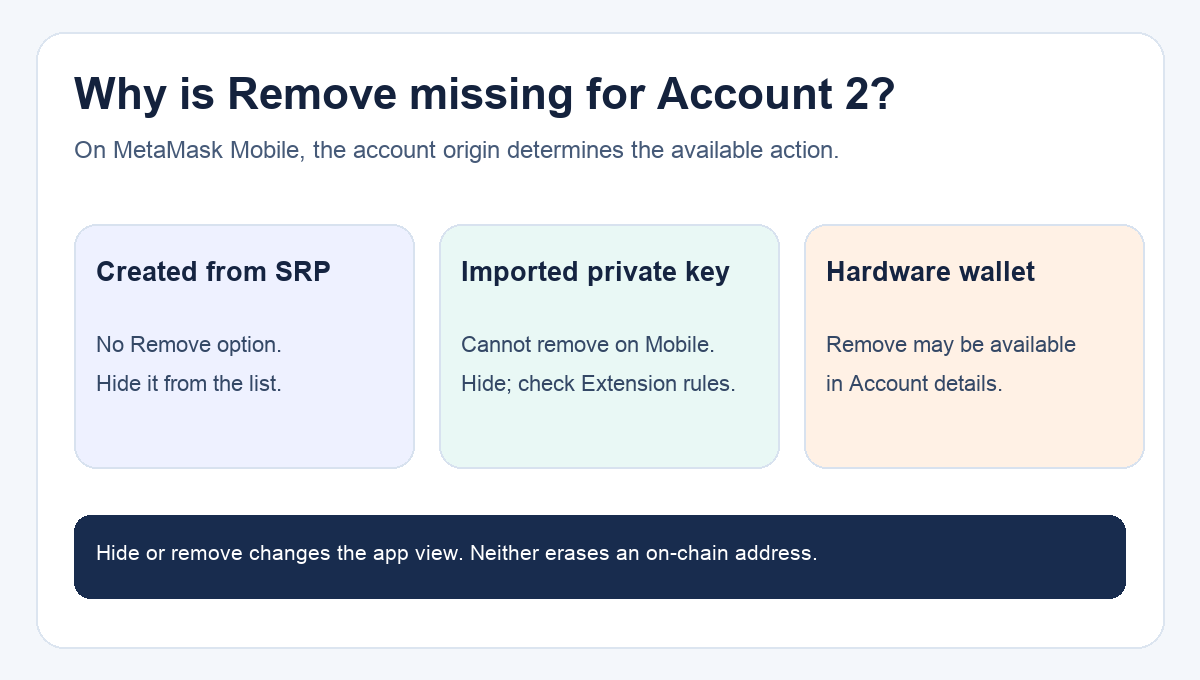
A MetaMask iPhone user noticed an unwanted Account 2 and could not find Remove or Delete. They even reinstalled the app and restored the wallet, but Account 2 came back. That sounds like a failed cleanup until you learn how MetaMask treats accounts created from the same wallet. If Account 2 was created from your Secret Recovery Phrase, MetaMask does not offer a Remove option. You can hide it from the account list.
Why is Remove missing for Account 2 on iPhone?
MetaMask's current account-removal guide splits hiding from removing. Hiding changes what you see in MetaMask; it does not delete the address or move anything on-chain. Removing detaches a removable account from this app instance; it also does not erase an address from a blockchain.
The key clue is where Account 2 came from. An account created with Add account is derived from the wallet's Secret Recovery Phrase (SRP), the private backup that can generate several accounts. MetaMask says created accounts cannot be removed. That explains why the user's reinstall and SRP restore did not solve the annoyance: the same phrase can still derive that account. Reinstalling is a risky way to test a display setting, especially if you have other imported accounts or have not confirmed your backup. See our iPhone uninstall safety checklist before ever removing the app.
How do I hide Account 2 instead?
MetaMask's hide-account instructions say to open the account selector from the account name at the top, use the gear icon to manage accounts, then use the eye icon beside the account you want out of the main list. A hidden account stays available behind the gear and can be shown again. That gives the iPhone user the practical result they wanted: less clutter, without pretending the on-chain address is gone.
Before hiding it, compare the public address of Account 2 with any address you use to receive funds. A name such as “Account 2” is only a local label; the public address identifies the account. Do not share your SRP or private key to ask someone else to check it. Hiding a funded address does not transfer its assets or protect it from a compromised recovery phrase.
What if Account 2 was imported or came from a hardware wallet?
The result changes with the account's origin, and this is where old forum replies can mislead. MetaMask's current guide says that on Mobile, only hardware-wallet accounts can be removed. A private-key-imported account cannot be removed in Mobile. For an eligible hardware-wallet account, open the account selector, use the three-dot menu beside that account, then Account details → Remove account. If that option is absent, MetaMask's rule is to hide the account instead.
For a private-key-imported account, MetaMask documents removal in its Extension only under an SRP-only wallet setup. Do not assume that logging in through Google, Apple, or Telegram gives the same removal route: MetaMask says accounts in those setups remain linked and can be hidden. None of these menu actions changes who controls the underlying address.
The diagram above condenses the decision: first identify how Account 2 was added, then choose the allowed display action. If you cannot tell its origin, stop at the account list and check the current MetaMask account guide before resetting or reinstalling. The missing Remove button is usually a rule about account type, not evidence that your phone or funds are broken.
Official sources
Product interfaces and recovery policies can change. Confirm the current steps before acting.