Ledger Wallet shows different balances on mobile and desktop? Compare the token amount, add the same existing account, and check the address before resyncing.
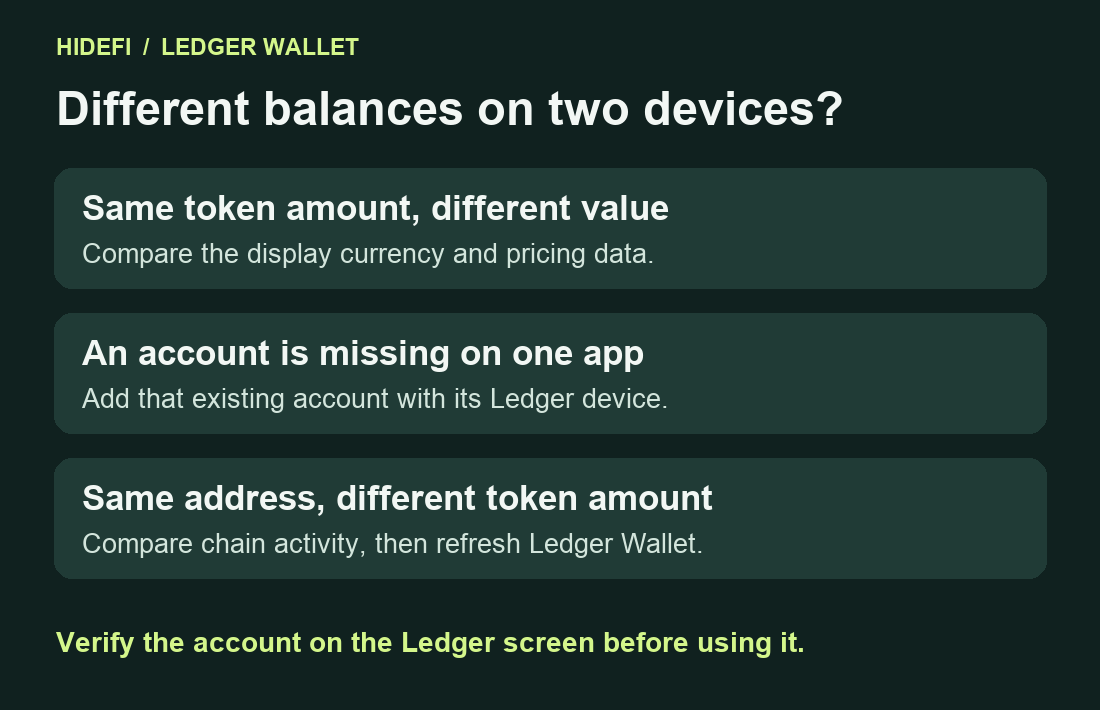
A Nano X owner saw different stETH balances in the phone and desktop apps even after reconnecting the same signer. In Ledger Wallet, formerly Ledger Live, start with the token amount and the account shown in each app. Two installations can show different account lists. They can also give the same holdings different estimates in dollars. Nano X user report, Ledger’s balance comparison guide.
Compare the token amount before the portfolio total
Open the same asset on each app and read the quantity in its own units. For an Ethereum token such as stETH, compare the token under the same Ethereum account. If the quantities agree and only the fiat estimates differ, check the display currency and Ledger’s pricing service. Pricing delays can change the estimate shown for the same balance. Ledger’s value display guide, Ledger Status.
Add the existing account on the app that is missing it
Compare the account lists. Each installation keeps a local list of the accounts it displays. An account added on your computer may still need to be added on your phone. Start with the Ledger that already controls the account. Ledger’s guide to using multiple devices.
- Desktop. Open Accounts → Add account, select the asset, and connect and unlock your Ledger. Follow the prompt to open the relevant app on the device. Select the existing account that Ledger Wallet finds with transaction history, then confirm the selection. In a fresh desktop installation, look for Add crypto account on Home if Accounts is unavailable.
- Mobile. In Home, scroll to Accounts, open the list, and tap Add account. Choose the option to use your Ledger device and follow the prompts for the asset. Ledger’s phone connection requirements depend on the model. A Nano S, for example, cannot add accounts directly on an iPhone. Ledger’s desktop and mobile add-account instructions.
If the detected account has no history and you expected a funded one, pause. Check which signer or passphrase wallet opened it before adding a new account or changing the device. Keep the working signer and backup intact. If Ledger reports a device mismatch for a Bitcoin account, use the Ledger Bitcoin account verification guide.
Check the same address, then refresh the app
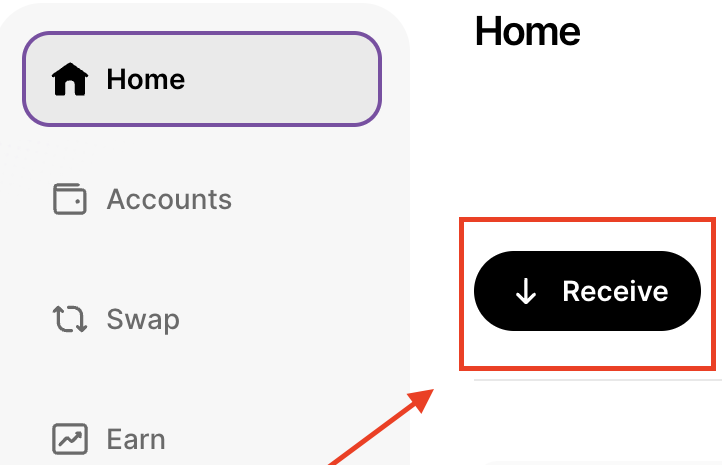
For the Ethereum example, compare the full public receive address of the parent account on both apps. On desktop, Home → Receive → Via crypto address opens the verification flow. Choose the account and check the address on your Ledger’s screen. This check requires no transfer. Different addresses point you back to the selected account. Ledger’s receive-address guide.
If the address matches and the token amount still differs, use a block explorer for that network to compare the address and its latest activity. On the desktop app, Settings → Help → Clear under the cache option forces Ledger Wallet to read account data again. Allow it to finish syncing before comparing the token amounts. If a discrepancy remains, check Ledger Status and contact Ledger Support with the app versions, asset and network. Keep your recovery words offline. Ledger’s cache and pricing guidance, Ledger Support.
Official sources
Product interfaces and recovery policies can change. Confirm the current steps before acting.