Phantom mobile offers PSOL for new stakes. To choose a Solana validator, find Native Staking in the official browser extension.
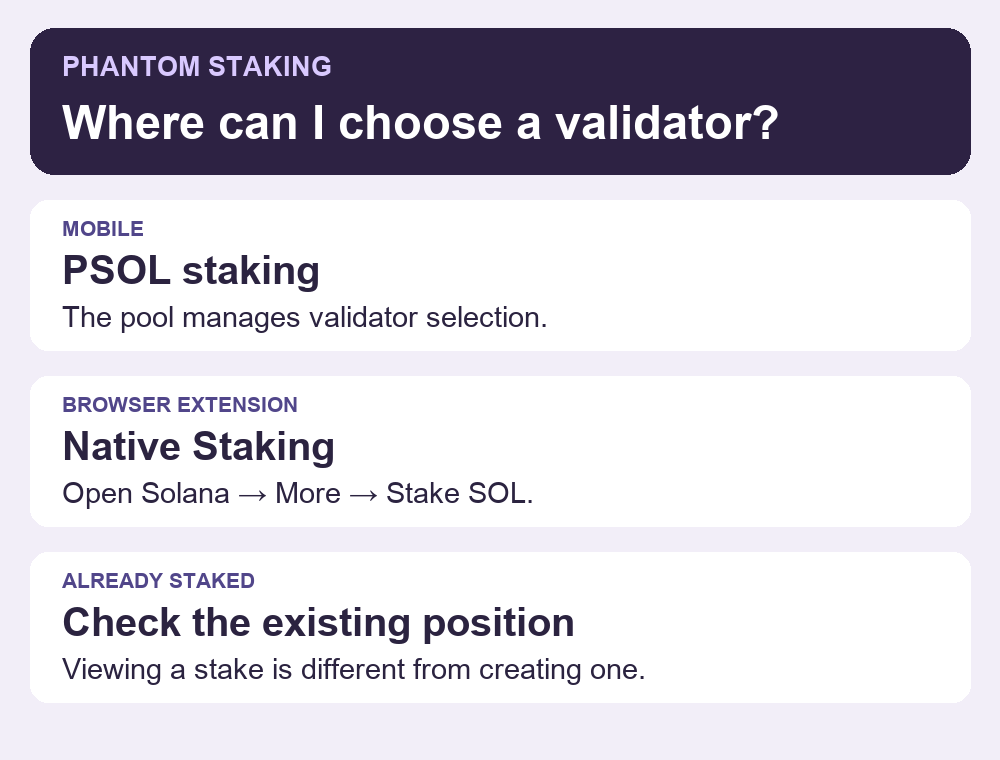
A Phantom user wanted to pick a validator but only saw a PSOL option. The first thing to check is where you opened Phantom. The mobile app can show an existing native stake, but opening a new one and choosing its validator is a browser extension feature. That split is in Phantom’s current native staking guide.
Find the validator picker in the browser extension
If you already have access to the intended Solana account in the extension, open Solana from its token list and choose More → Stake SOL → Native Staking. The next screen lets you select a validator. Reaching that screen is enough to verify the option is available. Opening the stake is a separate on-chain action that locks the SOL in a stake account. Phantom documents a 1 SOL minimum for opening a native stake.
If you only have the mobile app, use Phantom’s official extension setup instructions to find the genuine download. Compare the account’s full public Solana address with the one on your phone before relying on the extension balance. If they differ, stop and check which account you opened. You do not need to send funds just to see the menu or prove the app works.
Tell PSOL apart from a stake you already opened
With native staking, you choose the validator yourself. With PSOL, you receive a liquid staking token and the pool handles validator selection. Phantom’s comparison explains that these are two different positions. Seeing a PSOL option on mobile therefore does not mean you can select a validator from that screen.
If you already opened a native stake, look for your existing native position. Phantom’s current guide says you can view, unstake and withdraw existing positions on mobile even though you cannot create one there. Seeing a position on mobile confirms you can inspect that stake. To choose a validator for a new position, return to the extension. For a different wallet’s minimum-stake symptom, see why Solflare may reject an amount under 1 SOL.
Official sources
Product interfaces and recovery policies can change. Confirm the current steps before acting.