Check whether Binance has reopened withdrawals for your coin and network, and use withdrawal history to see if an earlier request already went through.
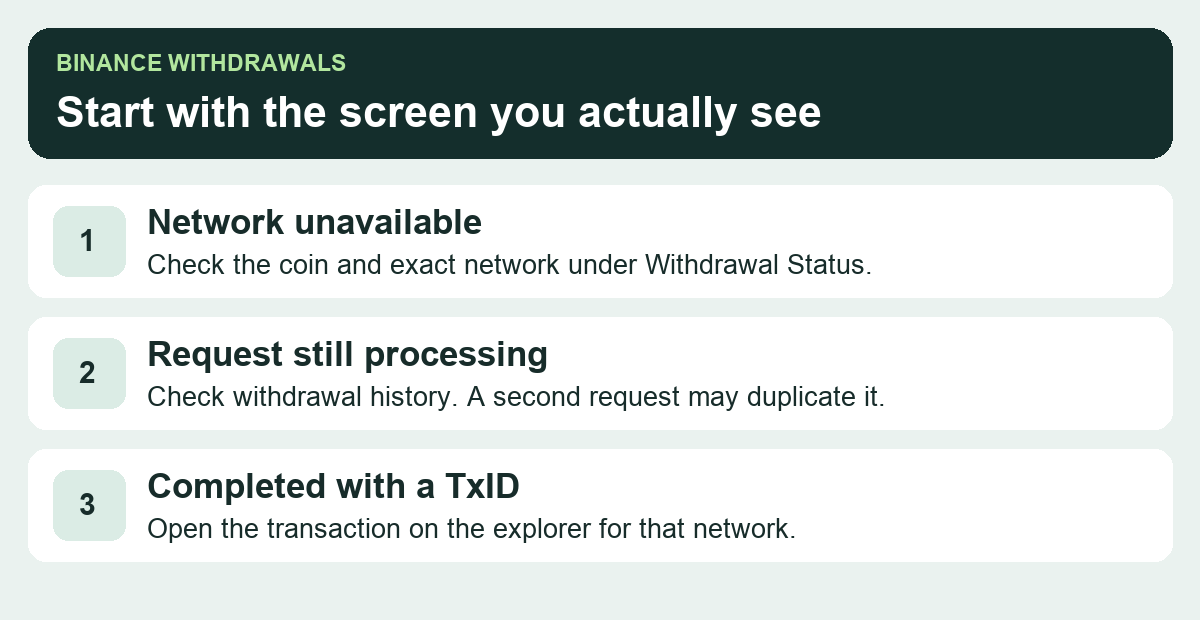
A Binance user asked when withdrawals would reopen on November 1. Their screen still showed suspensions on the date they expected the service back. The detail that makes this confusing is that a reopening notice can be accurate while your route stays unavailable. Binance’s November 6 recovery update describes a phased rollout by coin and network. Check the exact coin and network you need on the withdrawal screen before making a new request.
Check the coin and network together
For Binance.com, start on the Deposit & Withdrawal Status page. Search for the coin and read Withdrawal Status for the network you intend to use. For example, the availability of USDT on Ethereum tells you nothing about USDT on BNB Smart Chain. If the public table is empty or shows No records, that page has given you no usable answer. Open Withdraw in your own Binance account and check the coin and network there. You can do this without submitting a withdrawal.
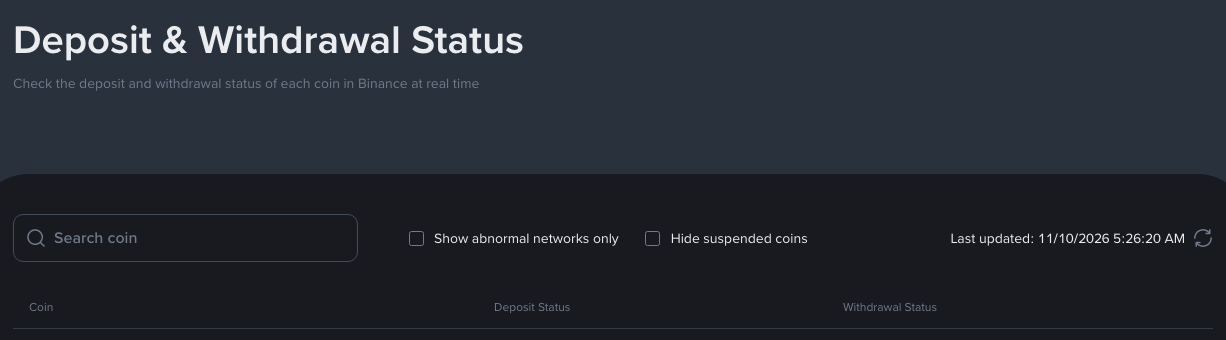
If your network is still unavailable, watch that pair. Binance documents a reminder option for some suspensions. Use it if the withdrawal screen offers it. A different network is only a possible route if the destination explicitly supports that coin on that exact network. A matching ticker or similar-looking address does not establish compatibility.
Check whether you already submitted a request
A disabled network in the withdrawal form concerns a new request. An entry marked Processing in your history means you already have a request to track. On the website, Binance’s withdrawal help points to Overview, then Orders → Assets History → Withdraw. If your request is still processing and there is no transaction ID (TxID), you do not have a transaction to trace from that record. Keep the request details and use the official Binance support route if the request remains unresolved. Check the existing request before submitting another one.
If the record says Completed and shows a TxID, open that transaction on the explorer for the network you selected. Check confirmations there. If the transfer is confirmed to the expected destination and the recipient still does not show it, give the TxID to the receiving exchange or wallet’s official support. The Binance deposit guide covers the reverse direction if you sent funds to Binance.
An account message about risk control or identity verification needs account-specific help from Binance. The public network table cannot tell you when an individual restriction will clear. Open Binance directly for support and keep verification codes and account credentials out of forum replies and direct messages.
Official sources
Product interfaces and recovery policies can change. Confirm the current steps before acting.